AI & Setup Overhaul
1. Setup with Agentforce (Beta)
The biggest admin change in Spring '26 is a complete redesign of the Setup Home page. Instead of the old list of quick links, you now get a natural language input box and a row of quick-action buttons (Reset a password, Freeze a user, etc.). Below that sits an Org Health and Usage panel showing data storage, Security Health Score, and most-used Licenses at a glance, each card with an Ask Agentforce button.
Type a request into the conversation panel—something like "Create a custom object named Audit with a date field named Audit Date"—and Agentforce generates a Proposed Data Model showing Object Label, API Name, field types, and descriptions. Confirm and it creates everything directly, no more navigating Setup → Object Manager → New Custom Object manually. The conversation panel expands to a full-screen Canvas for complex tasks—you can preview record details, list views, and metadata changes before applying. All operations require manual confirmation (Human-in-the-loop) before execution.
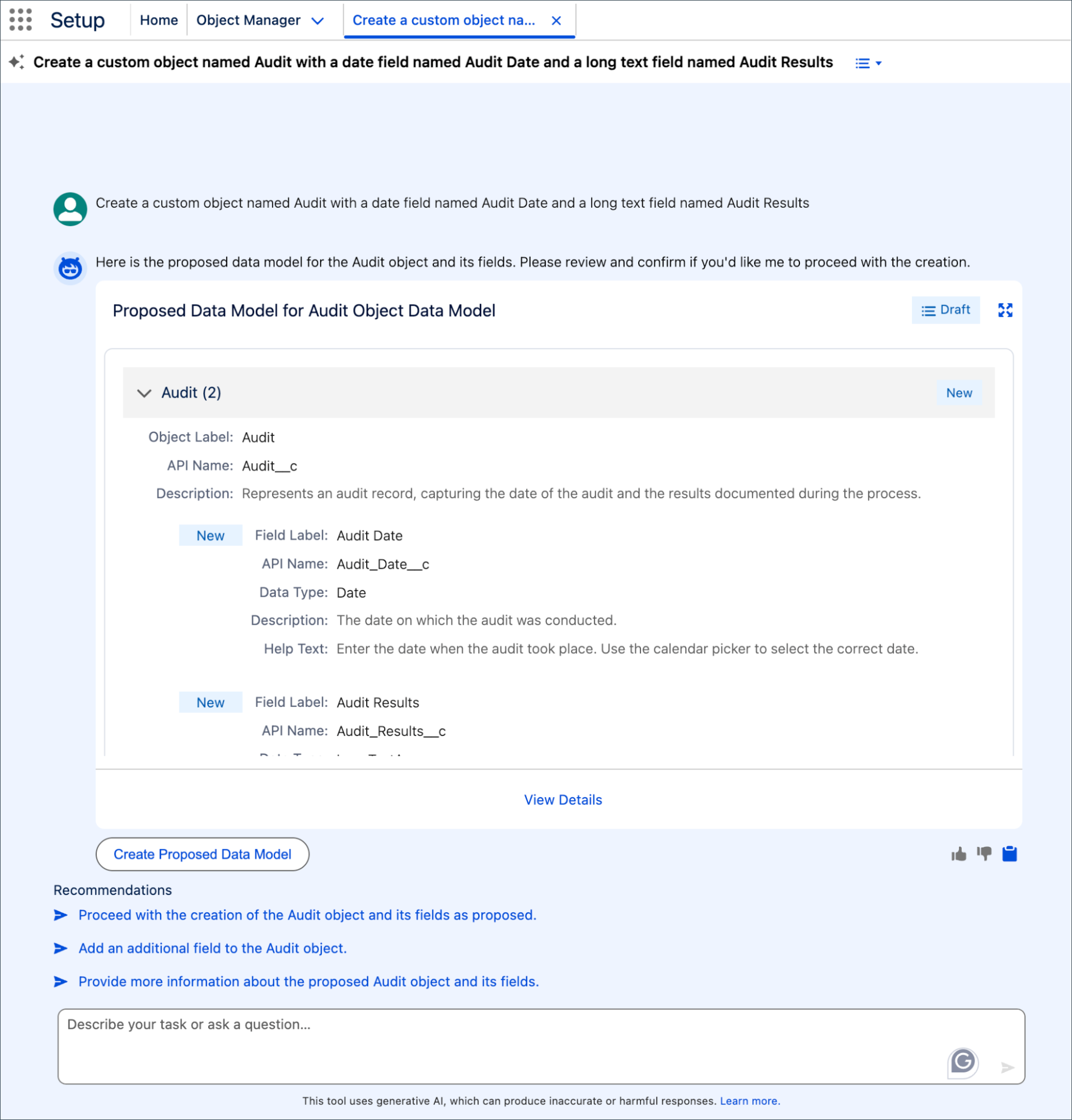
Beta-supported operations:
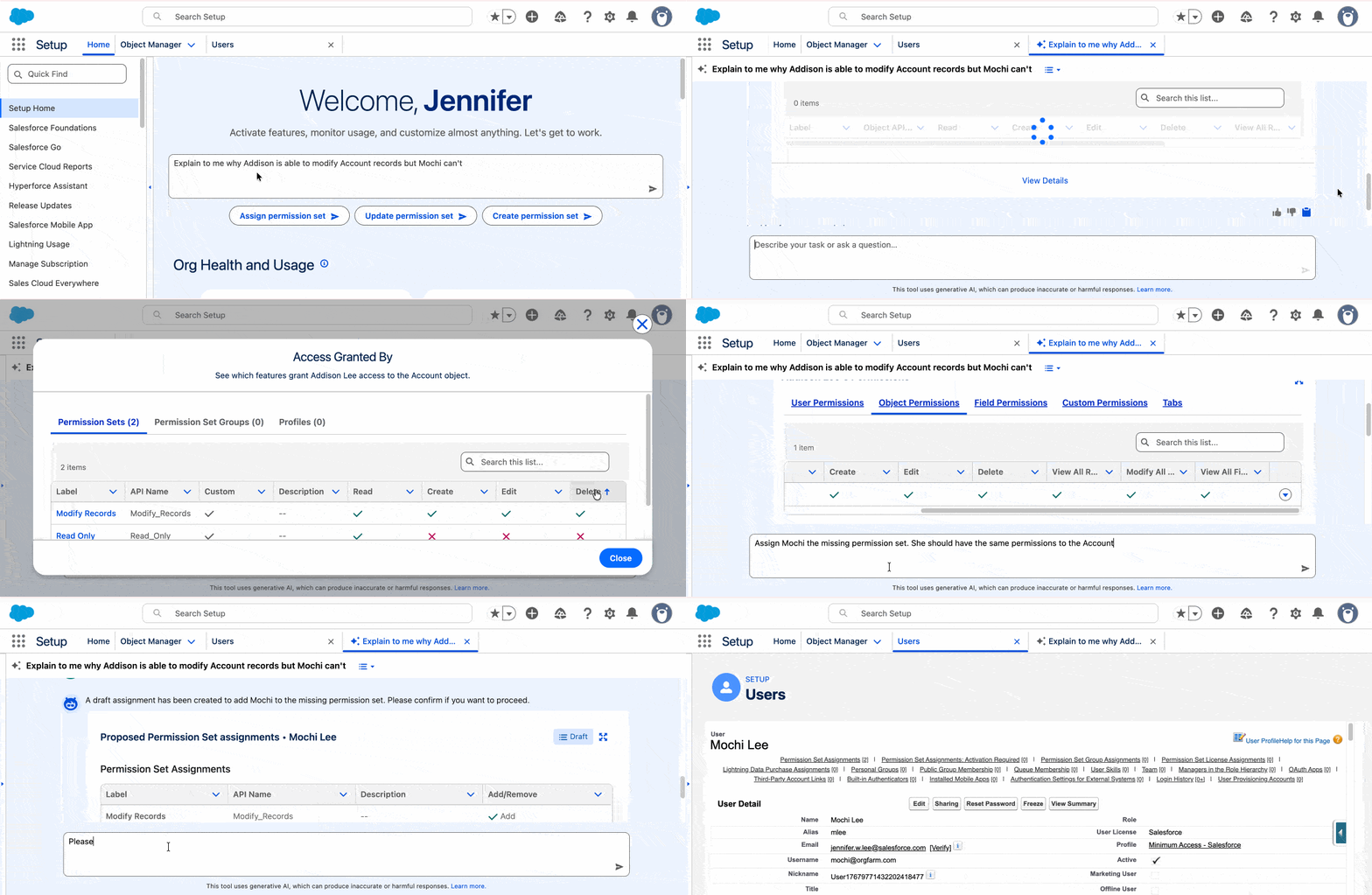
- User management and access troubleshooting (including Permission Set assignment diagnostics)
- Permission Set / Permission Set Group / OWD / Sharing Rule configuration
- Custom object and field creation
- Flow generation and management
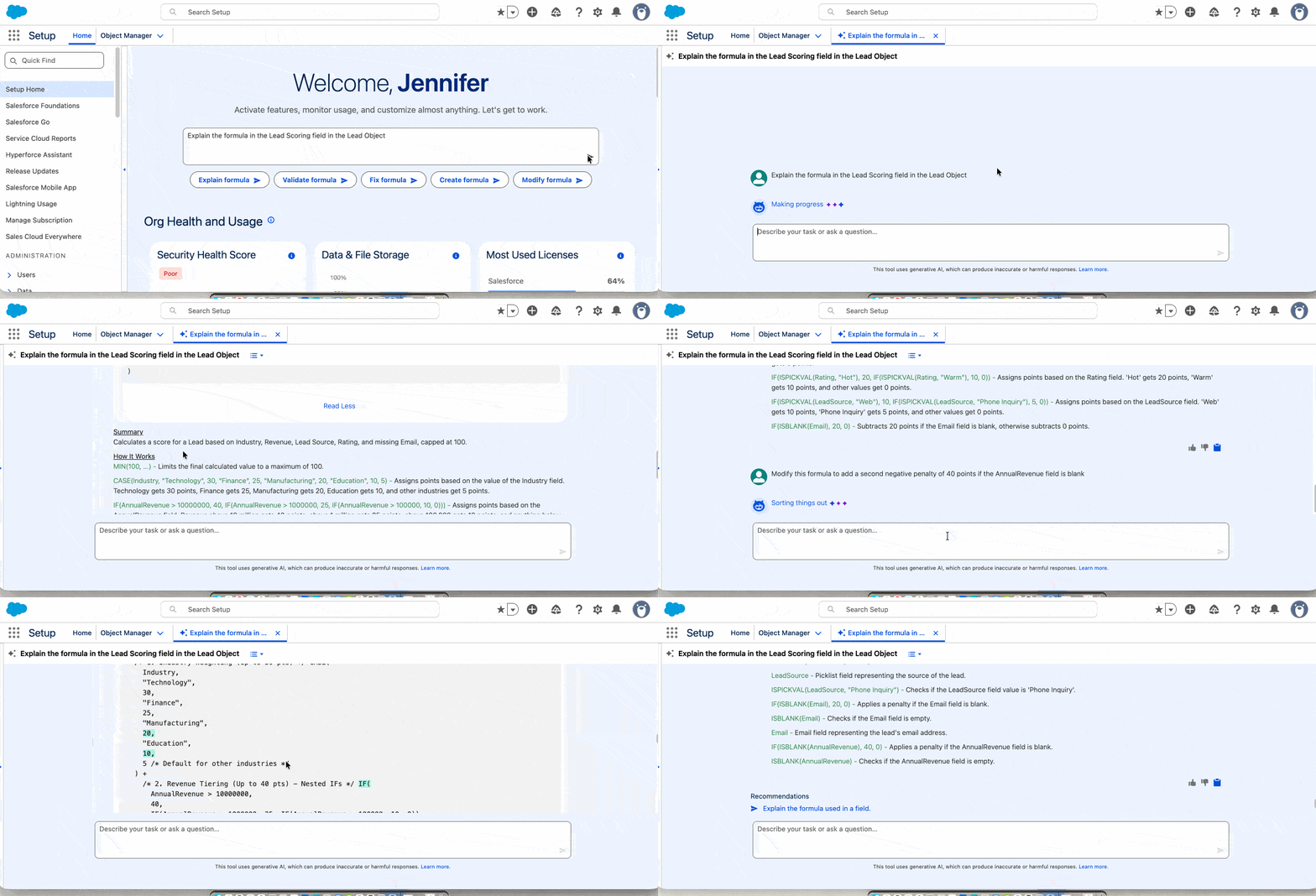
- Formula fixing and explanation (paste a broken formula and let it analyze the error)
- Help documentation search and Setup page navigation
- Custom Report Type and Lightning Page creation
- License usage queries
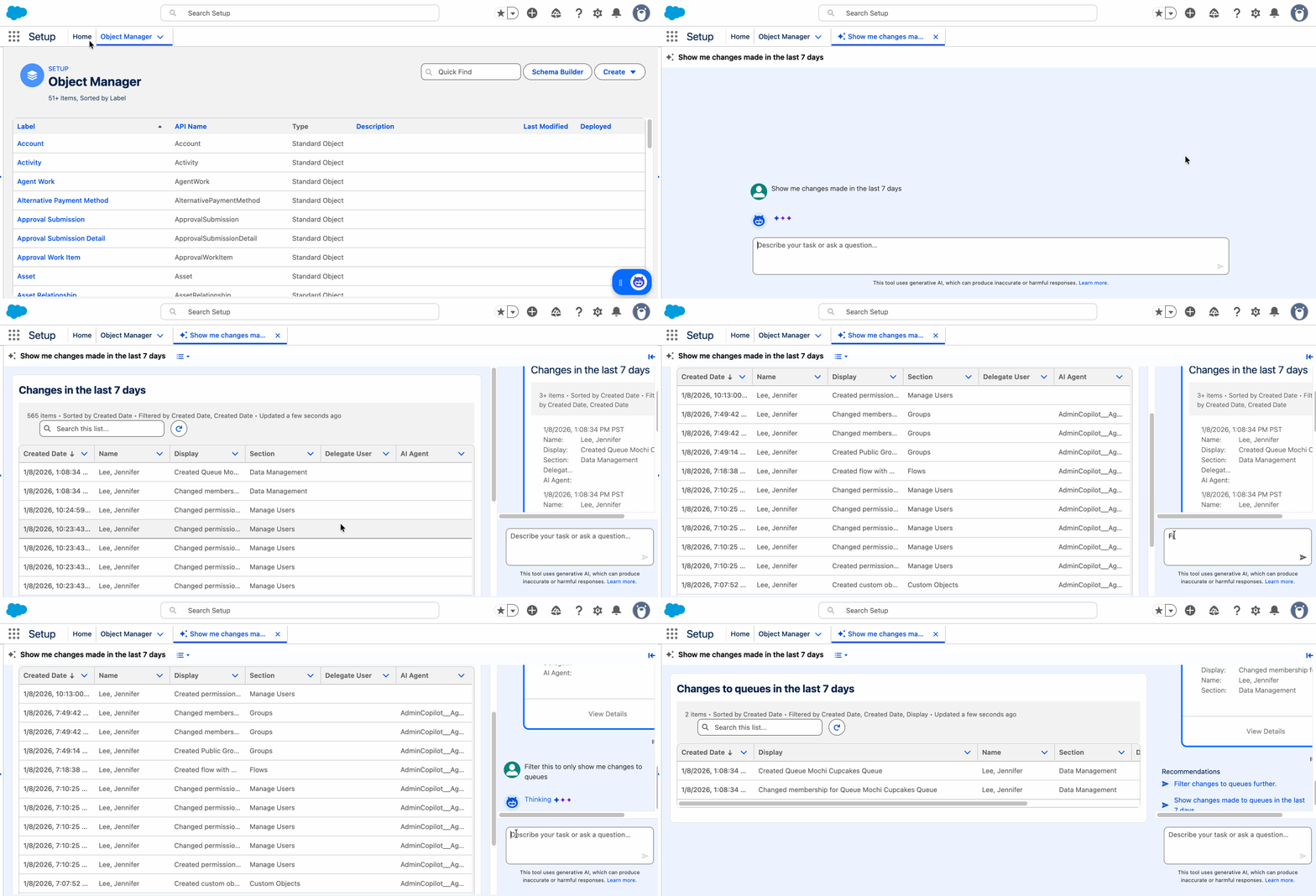
- Setup Audit Trail queries (e.g., "Show changes from last 7 days")
Edition requirements: Enterprise, Performance, Unlimited, Developer with Foundations or Agentforce 1. Required permissions: Customize Application, Data Cloud User Permission Set, Use Setup with Agentforce, Execute Prompt Template, and Access to Data 360 Default Data Space. Enable at Setup → search "Setup with Agentforce" → check the box → refresh browser, then click "Ask Agent for Setup (Beta)" on any Setup page.
Beyond object creation, Setup Audit Trail queries are handy—just ask "Show changes from last 7 days" to see recent configuration changes:
Formula troubleshooting is another high-frequency use case—paste a broken formula and Agentforce not only pinpoints the error but explains the logic and suggests fixes:
User access troubleshooting works the same way—type "Why can't user X access object Y" and Agentforce traces through Profile, Permission Set, and Sharing Rule layers to diagnose the issue:
2. Agentforce for Flow (GA)
Describe your business logic in natural language and Agentforce generates a complete draft of a Record-Triggered Flow, Schedule-Triggered Flow, or Screen Flow. Graduated from Beta to GA with noticeable quality improvements—in practice, it cuts about 70% of manual drag-and-drop time for simple to moderately complex Flows. Generated Flows follow best practices and don't consume Generative AI Credits.
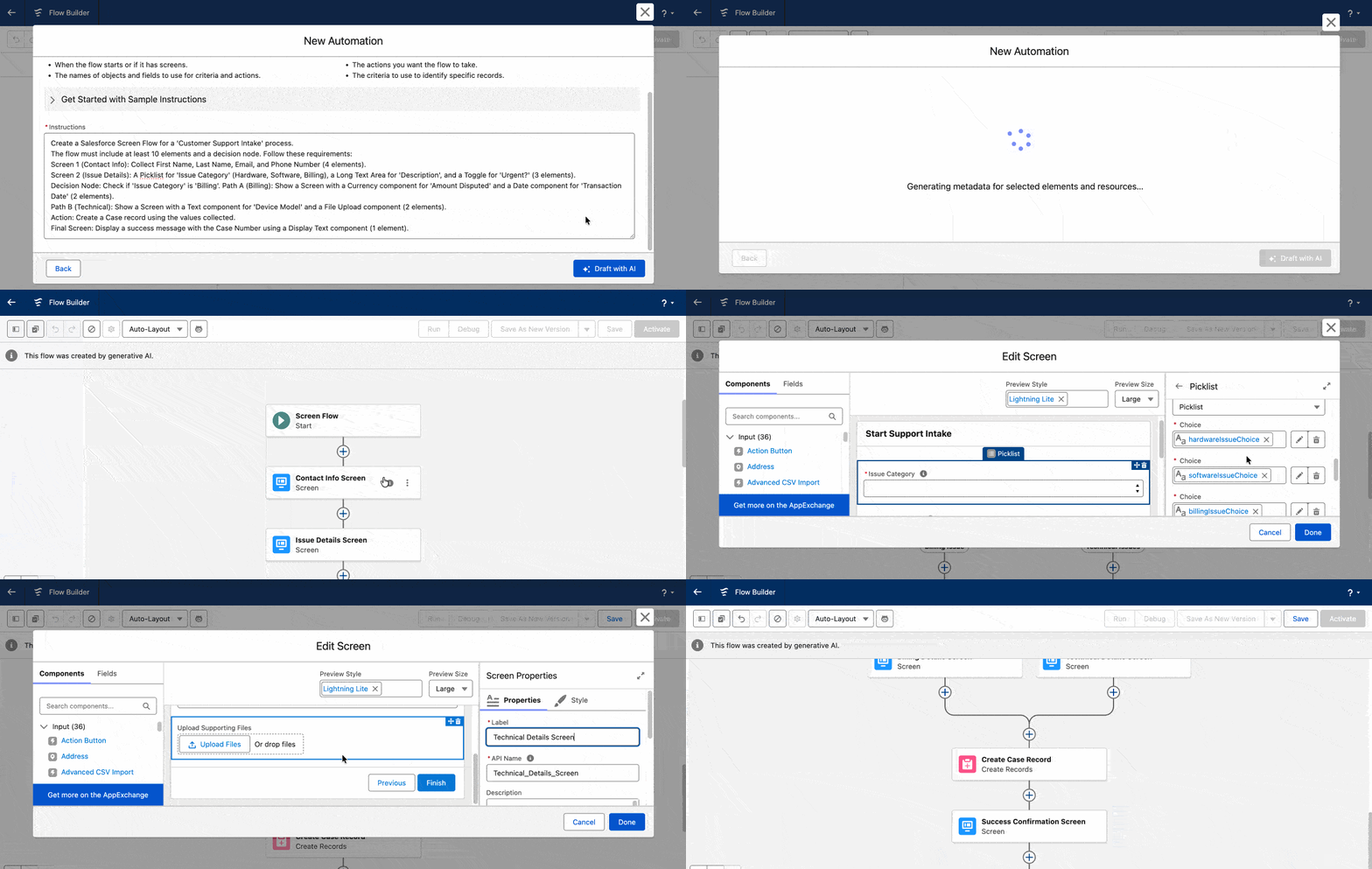
Available on Essentials, Pro Suite, Professional, Enterprise, Performance, Unlimited, Developer with Foundations or Agentforce 1. Before using, provision and enable Data 360 in your org and turn on Einstein Generative AI. In Flow Builder, create a new Flow, click "Get Started" under "Let AI Help You Build," provide your instructions, and click "Draft with AI." Describe something like a customer onboarding process and it can generate a 10+ element Flow with Decision nodes, multiple Screens, Picklist inputs, Currency components, Create Records Actions, and success messages.
3. Flow Iteration with Agentforce
Existing Record-Triggered and Schedule-Triggered Flows can now be iteratively modified with natural language too. Open an existing Flow in Flow Builder, type modification instructions in the conversation panel, and Agentforce automatically adds, moves, or removes elements. It shows a change preview before applying—you accept or reject each modification. Also doesn't consume AI Credits.
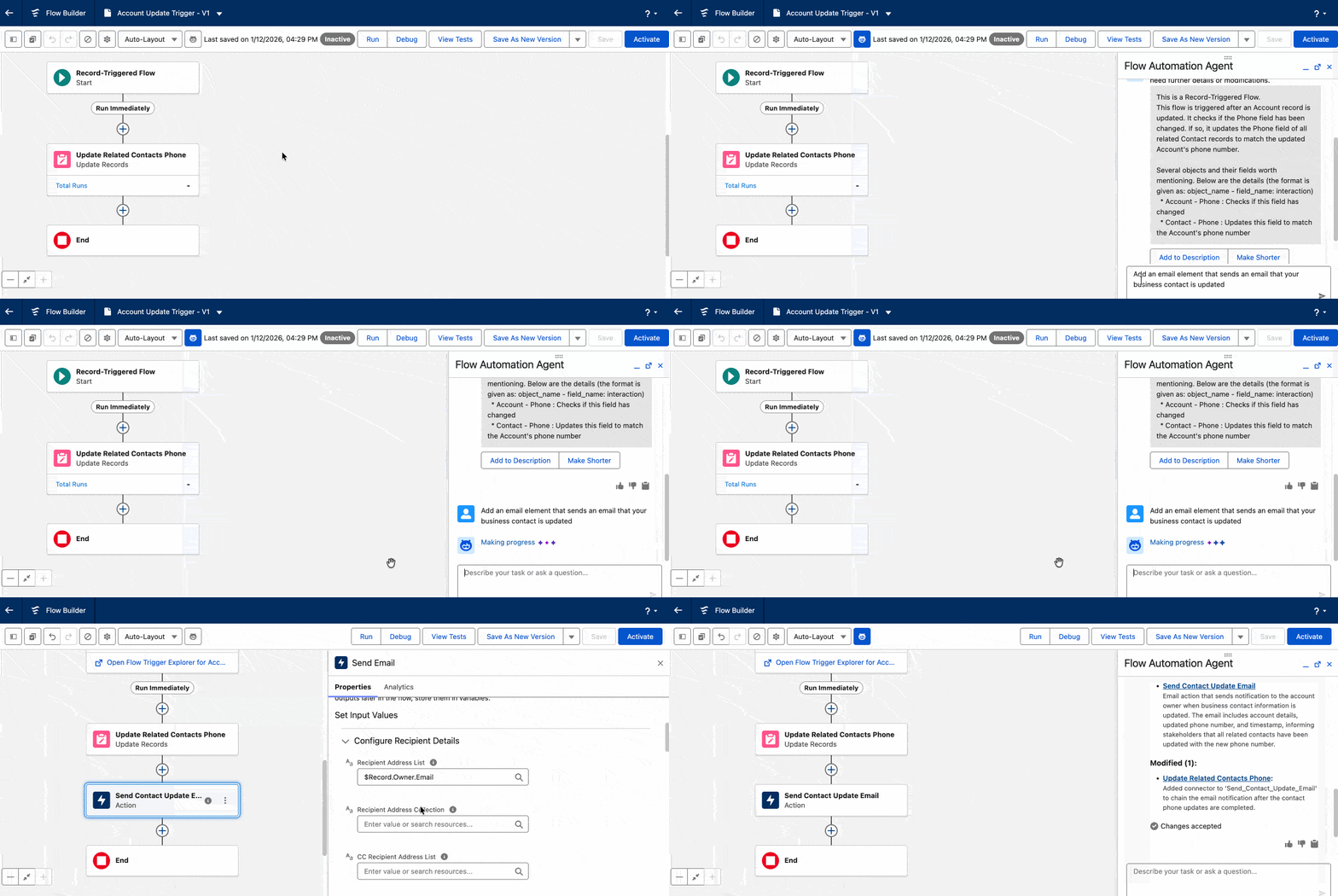
Supported instruction examples:
- "Add an email element sending business contact update notifications"
- "Add Decision element checking if category matches X"
- "Remove Loop element processing inactive accounts"
- "Add fault path to handle errors in Create Records element"
Requires Data 360 and Einstein Generative AI enabled, plus Agentforce 1 Editions. The agent shows all modifications for your Accept/Reject before applying anything.
4. Agentforce Vibes (AI IDE)
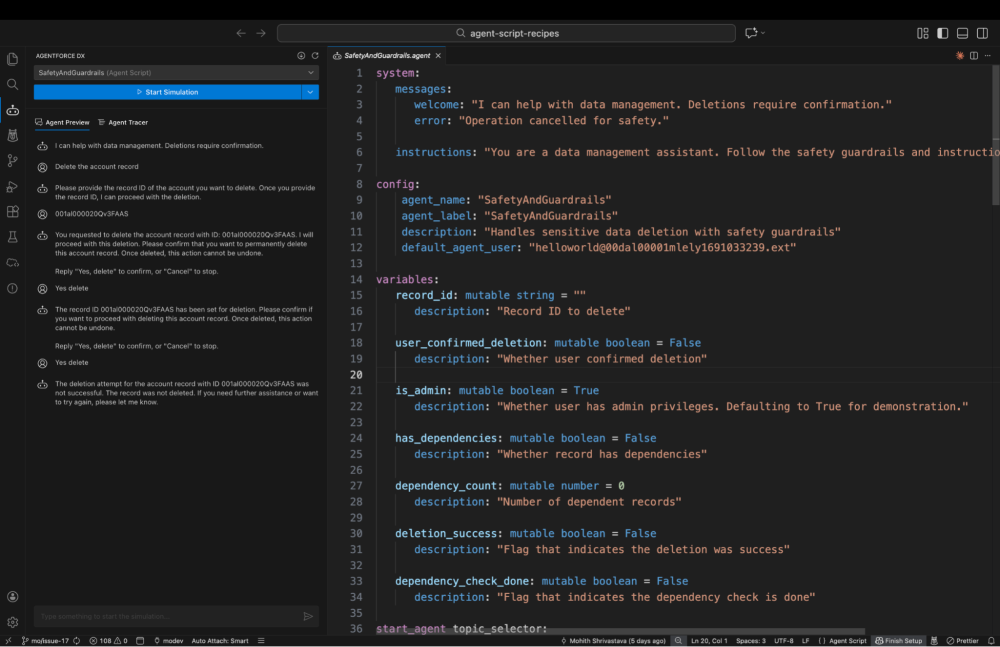
An AI technical assistant integrated into VS Code and the browser, supporting code generation, test creation, and technical troubleshooting. Built on the Salesforce Trust Layer so your code and data don't leak externally. Zero installation—access the full VS Code and Salesforce CLI environment from any computer's browser.
For admins, the biggest value is bridging the Low-Code to Pro-Code gap. When you hit scenarios requiring Apex or LWC (custom Triggers, batch processing, complex validation rules), describe what you need in natural language and let Vibes write the code for review before deployment. Enabled by default on Enterprise+. Josh Birk's blog "Introduction to Agentforce Vibes for Salesforce Admins" has a more detailed walkthrough.
Case Management Enhancements
5. Quick Text for Case Comments
Quick Text finally extends to Case Comments. Service reps can insert predefined text snippets with one click when writing Case Comments, with dynamic merge field support—fields like {!Contact.FirstName} and {!Case.CaseNumber} auto-populate with actual values. Standardizes common reply wording and eliminates typos from manual typing.
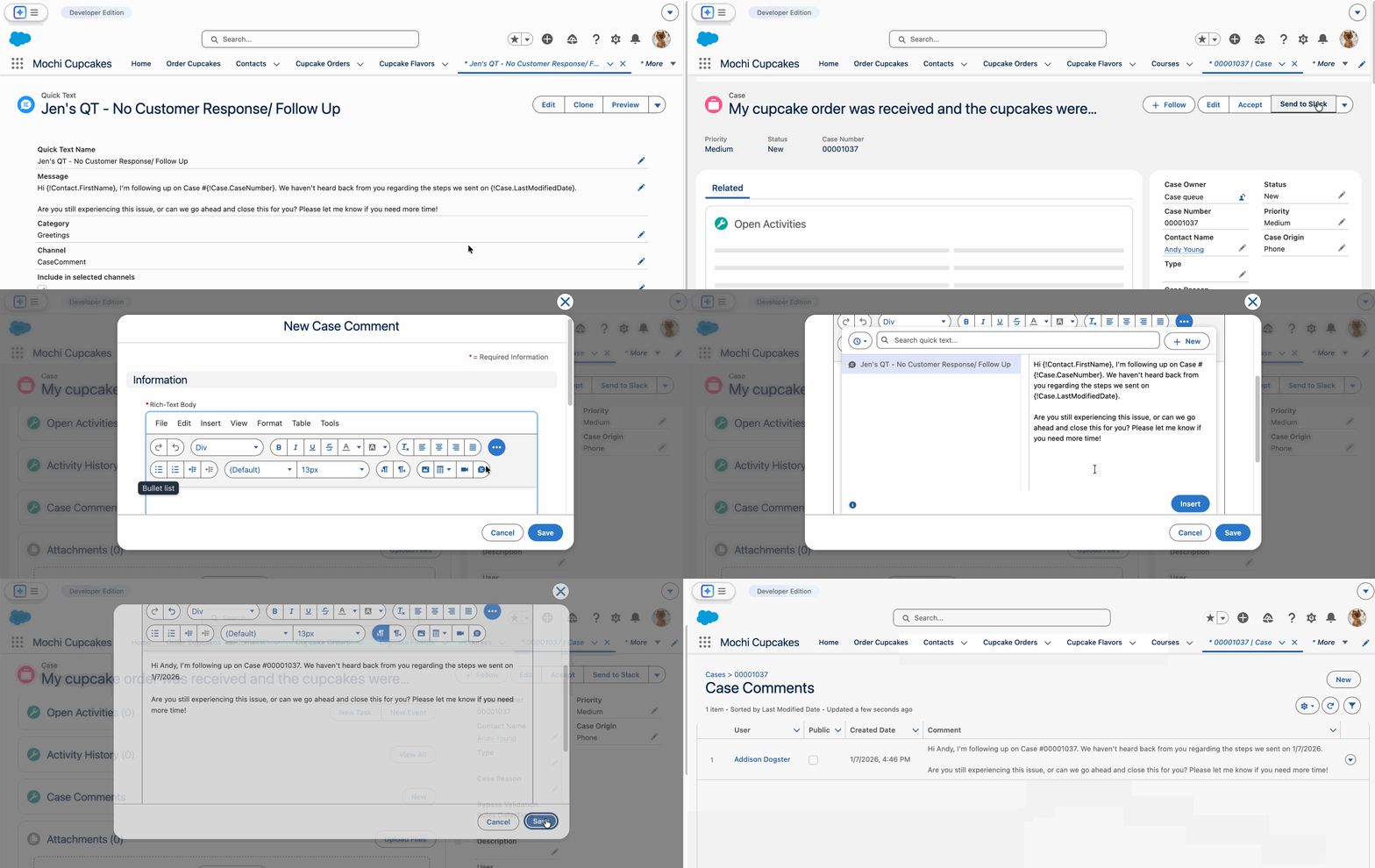
Activation steps:
- Setup → Quick Text Settings → enable Quick Text
- Setup → Support Settings → enable "Rich Text for Case Comments"
Critical warning: Enabling Rich Text for Case Comments cannot be turned off, and it breaks ALL existing references to the CommentBody field—including Apex code, Test Classes, Flows, and integrations. You must replace every CommentBody reference with CommentBodyRich. Search your entire org for CommentBody references before enabling.
6. Original Case Attachments Panel
Case record pages now have a dedicated panel that isolates the files originally submitted with the Case—the "day one" attachments. Previously, service reps had to dig through dozens of subsequent back-and-forth email attachments to find the original context. With this panel, even Cases with 50+ attachments let you quickly locate the initial problem description and screenshots.
Enabled by default with no extra configuration. Access via the "See Attachments" link on the Case Detail page, which opens the Original Attachments panel. Available in Lightning Experience only.
7. OWA Email Address Verification Enforcement
Starting Spring '26, all Organization-Wide Email Addresses (OWA) must be verified before they can send Case emails. Unverified addresses will fail to send Case emails with custom content—not just fall back to noreply, they simply won't send.
Check and fix steps:
- Setup → Organization-Wide Addresses
- Check the Status column
- Anything not showing "Verified"—click Edit (or create a new address)
- Salesforce sends a verification link email to that address
- Click the verification link, Status updates to "Verified"
This prevents email spoofing (bad actors sending malicious emails appearing from your trusted domain) and improves deliverability (fewer emails landing in spam). If your org has multiple OWA addresses, check them now—don't wait until go-live to discover customers aren't receiving Case notifications.
Platform Enhancements
8. List View 200-Record Edit Limit Moved Earlier
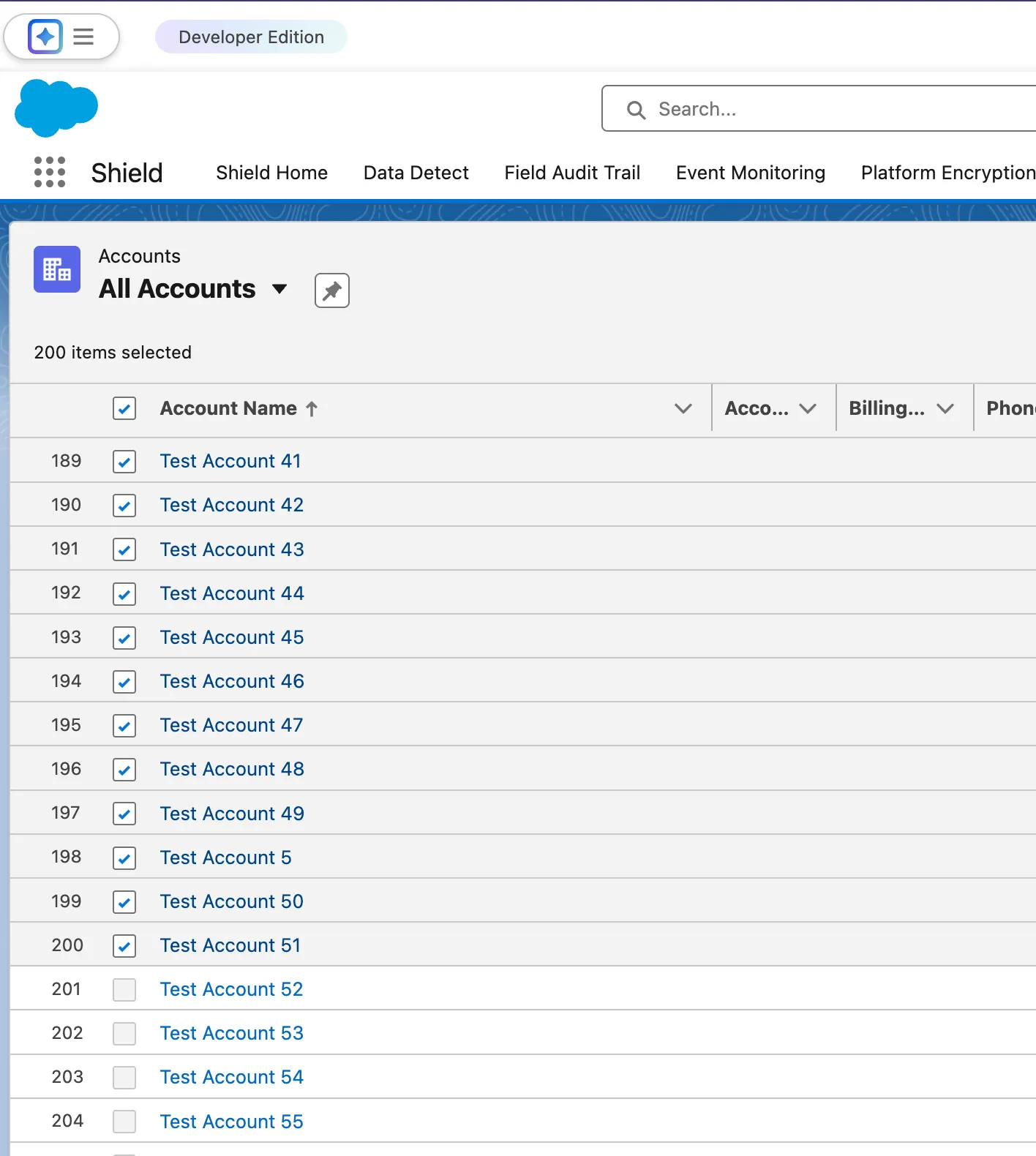
The LWC list view now checks record count at the selection stage—select more than 200 records and the edit button is disabled immediately (Edit icon grays out), instead of letting you make all the changes and then telling you "Too many records selected" on save. Previously this limit only triggered at save time, and admins doing bulk data cleanup would regularly waste 30 minutes of edits for nothing.
9. Blank Values Sort Last
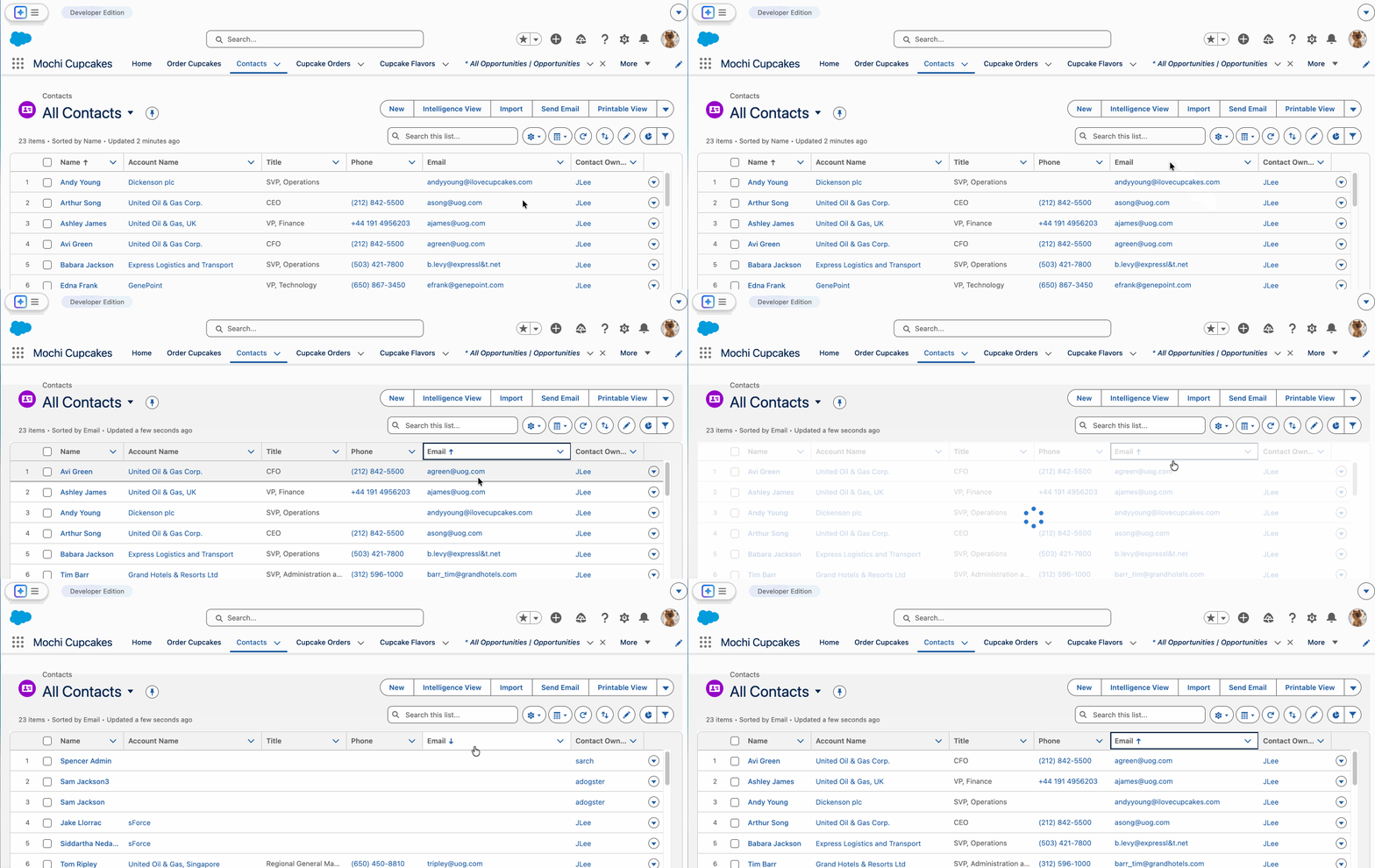
When sorting lists, null/blank values now sort to the bottom instead of the top. The technical change: empty values went from "smallest value" to "largest value" treatment. Previously sorting an Email field ascending showed a wall of blank rows first; now blank rows all go to the bottom and populated records display first.
Reports & Dashboards
10. Custom Disclaimer on Exported Reports
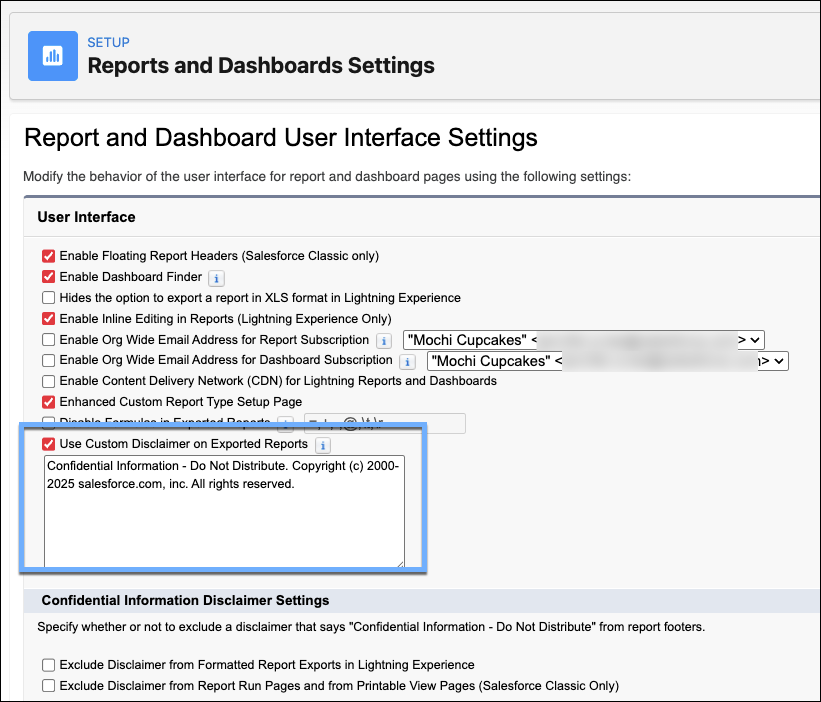
Setup → Reports and Dashboards Settings now has a "Use Custom Disclaimer on Exported Reports" option.
Activation steps:
- Setup → Reports and Dashboards Settings
- Check "Use Custom Disclaimer on Exported Reports"
- Enter your disclaimer text (legal notices, confidentiality clauses, etc.)
- Save
Every subsequent report export automatically gets this text appended at the bottom—users don't need to do anything, and they can't forget. Set it once and compliance is handled.
11. Usernames Shown in Report Folder Sharing
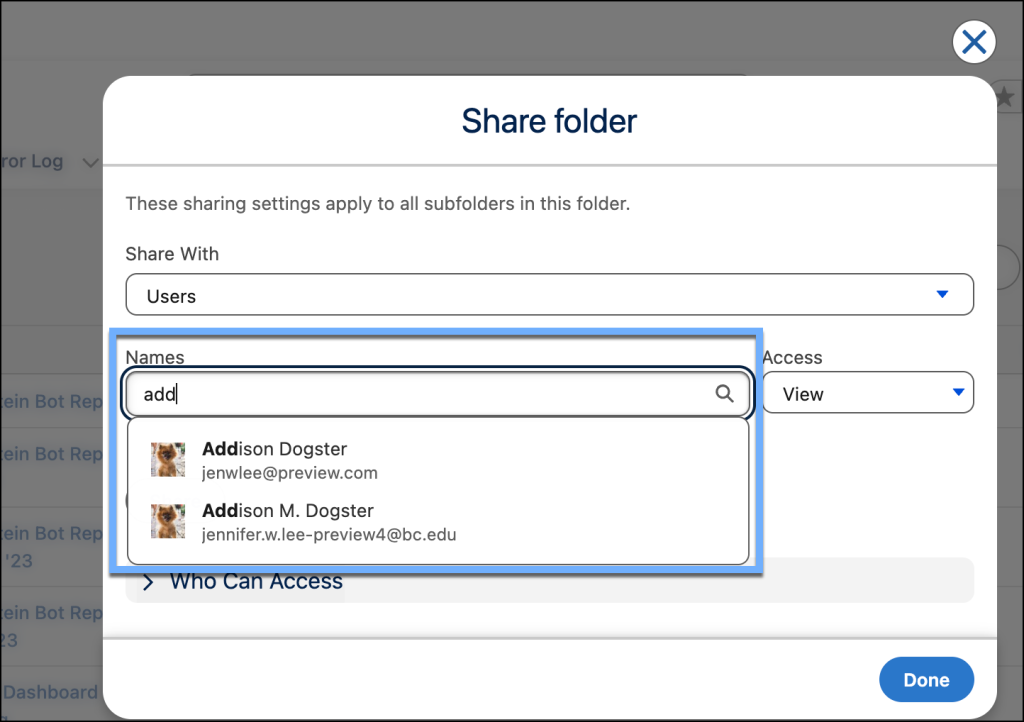
When sharing report or dashboard folders, you can now search and verify recipients by Username (e.g., JenniferLee@company.com) rather than just Display Name (e.g., Jennifer Lee). When your org has multiple people with the same name, Display Name alone can't tell them apart—you might share sensitive financial reports with the wrong Jennifer. The share dialog now shows both Username and Display Name.
12. Dashboard Tables Inherit Report Settings (GA)
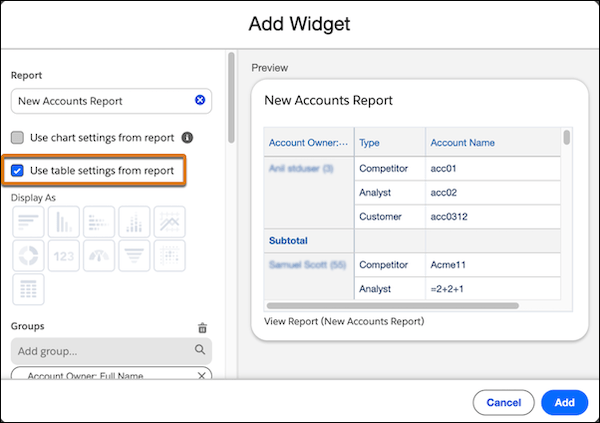
When adding a report table to a dashboard, you can now inherit the source report's Grouping, Custom Summary Formulas, and Bucket Fields with a single click.
Activation steps:
- Setup → Reports and Dashboards Settings → check "Apply report settings to dashboard tables"
- When adding a Lightning Table to a dashboard, select "Use table settings from report"
Previously you had to reconfigure these settings every time, which often led to dashboard data not matching the source report—especially Custom Summary Formulas, which are error-prone to recreate manually.
Setup General Improvements
13. State/Province Code Updates
Standard address Picklist codes updated: Canada's "Yukon Territories" (YT) simplified to "Yukon" (YT); Japan's Aomori (02), Akita (05), and Aichi (23) codes and names have been updated.
Automatic for new orgs created after Spring '26. Older orgs need manual action: audit existing Picklist values, verify address data, update hardcoded values in integrations, and clean up outdated Picklist options. If your business involves Canadian or Japanese addresses, verify whether existing data is affected.
14. Sandbox Copy Progress Bar
The sandbox copy UI went from a static "Processing" status to a real-time progress bar showing percentage completion through Metadata Copy and Data Transfer phases. After completion, the progress bar switches to showing the next available refresh time.
Enabled by default. If you prefer the classic UI, switch back in Dev Hub Settings (available until Summer '26). For teams that refresh Sandboxes frequently, you can now predict development and testing timelines more accurately—no more staring at "Processing" wondering how much longer.
Flow Builder Core Improvements
15. Branch Collapse
Complex Flows often turn into spaghetti—dozens of branches sprawling across the canvas, requiring endless scrolling to find what you need to edit. Spring '26 lets you collapse and expand branch elements. Collapsed branches show just the branch name, instantly decluttering the canvas. To use Jen's words: "Marie Kondo your flow canvas."
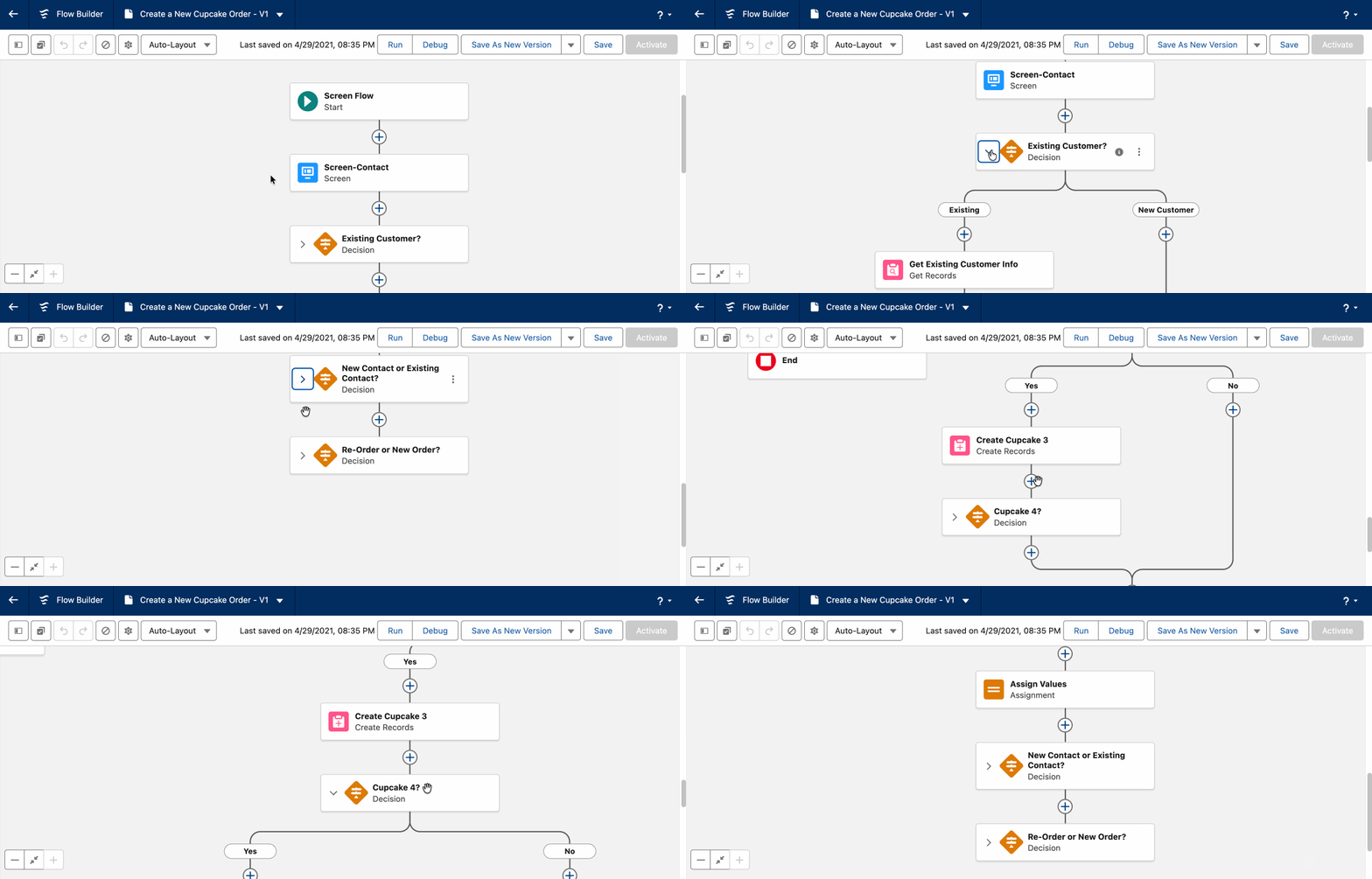
Collapse preferences are saved per user and persist throughout the editing session—navigate away and come back, your collapsed branches stay collapsed.
16. Self-Service Agentforce Panel
Users with the right License can self-enable the Agentforce panel in Flow Builder—no need for an admin to manually assign Permission Sets. Previously, admins had to enable the feature first, then assign permission sets before users could access it.
Editions: Essentials, Pro Suite, Professional, Enterprise, Performance, Unlimited, Developer with Foundations or Agentforce 1. Prerequisites: Agentforce enabled for the org, and either AgentforceEmployeeAgent or AIEmployeeAgents org permission enabled. Once these conditions are met, users see the panel automatically—zero admin configuration.
17. Mouse Wheel Navigation
The Flow canvas finally supports mouse wheel scrolling, trackpad gestures, and keyboard arrow key navigation. Supported navigation methods:
- Mouse scroll wheel / trackpad scroll
- Keyboard arrow keys (single press for slow movement, hold for fast)
- CTRL/Command + +/- to adjust zoom
- Trackpad pinch-to-zoom
- Vertical and horizontal scrollbars
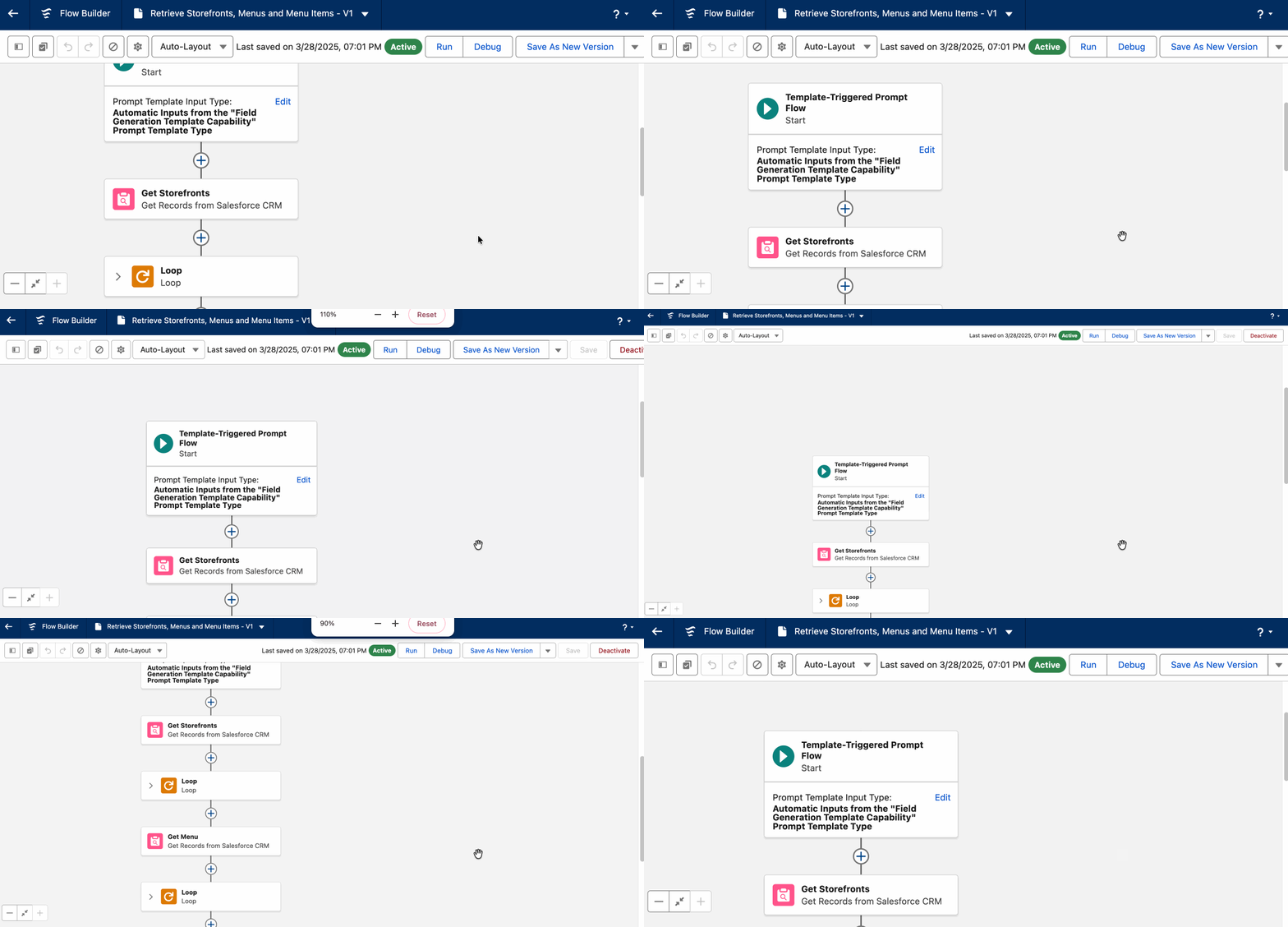
Previously you could only drag or click canvas edges to move around—a major improvement for browsing large Flows.
18. Decision Element Logic Label Update
The Decision element's logic selection changed from a simple dropdown to two clear tabs: "Define Manually (Default)" and "Define with AI (Advanced)."
The label change reinforces an architecture-level best practice:
- Manually (Default): For deterministic logic on structured data, e.g., "If Rating = Hot"
- AI (Advanced): For AI evaluation of unstructured data, e.g., "Analyze customer feedback email and determine if tone is 'Angry'"
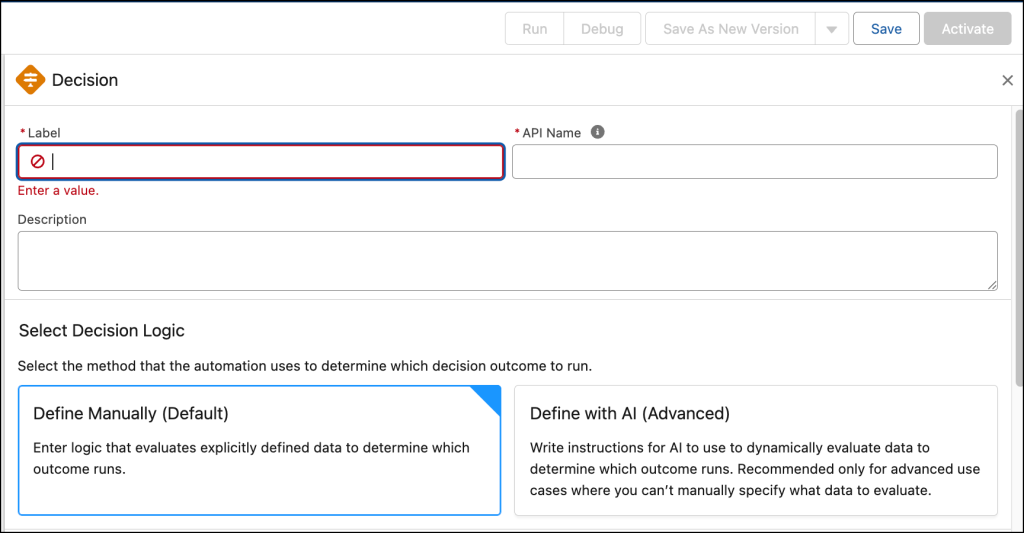
Use deterministic logic when you can. Edition requirements: Enterprise, Performance, Unlimited with Einstein for Sales / Einstein for Service / Einstein Platform add-on.
19. Subflow Variable Description Tooltips
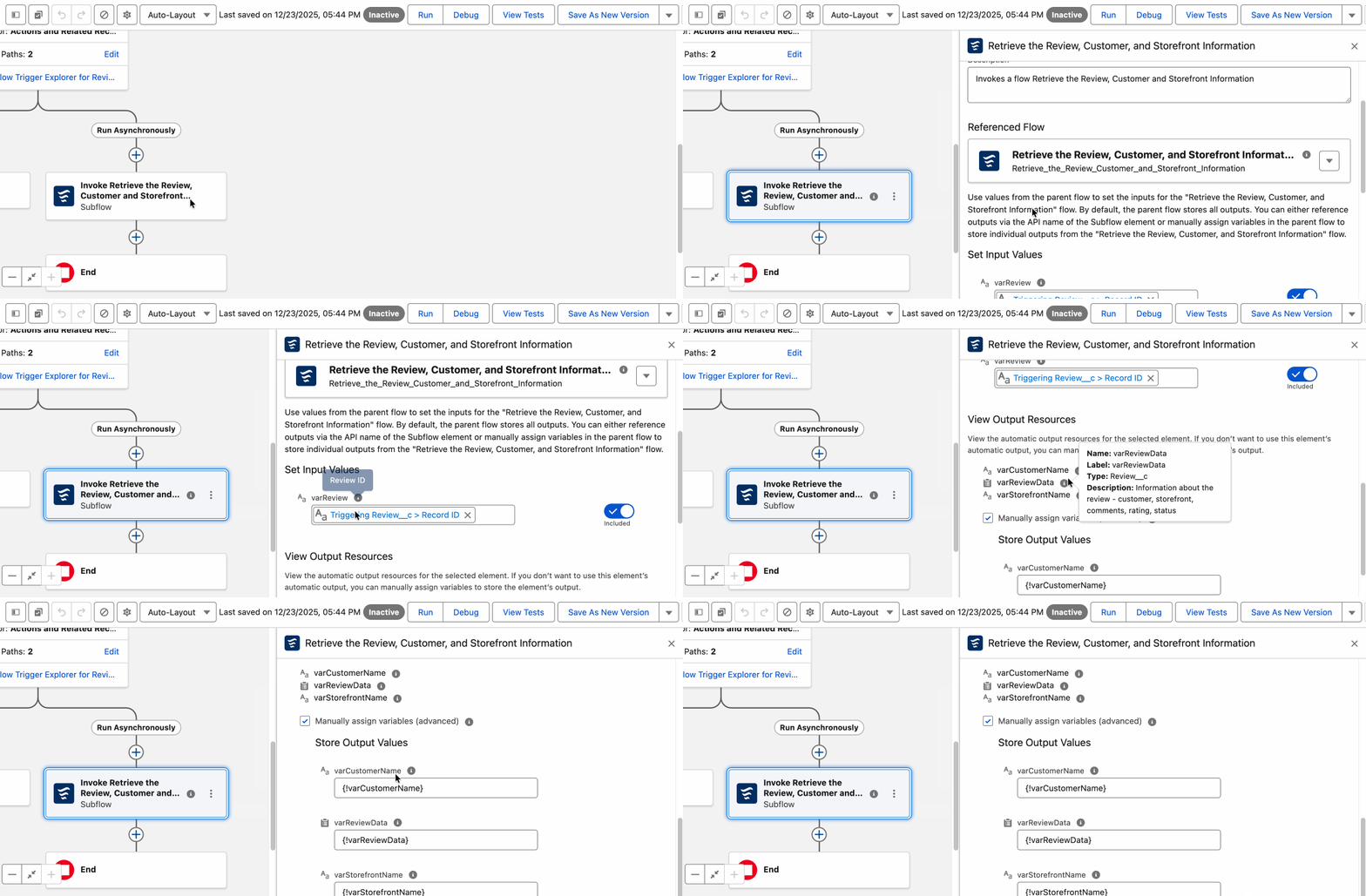
When using Subflows in Flow Builder, hovering over the infobubble on input/output variables now shows the variable's name, label, type, and description—no more opening the "Include" switch just to see what a variable does. Previously, to read a variable's documentation you had to toggle Include on, read it, then toggle it off (otherwise you'd introduce unwanted parameters). Every variable required this dance. Now just hover.
20. Action Description Visibility
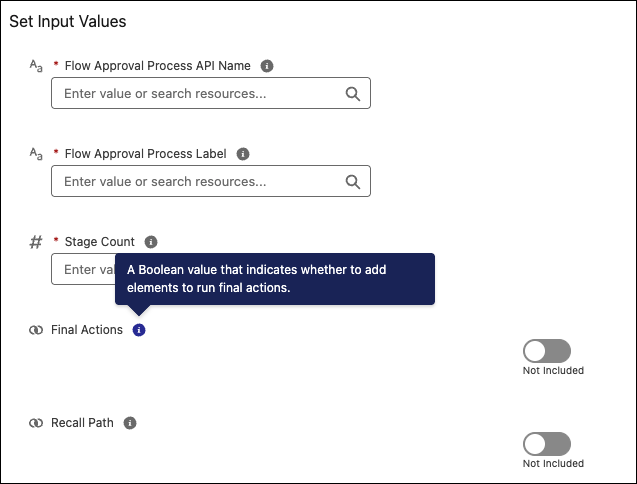
When configuring Action elements, hovering over input parameters now shows the parameter's documentation—no need to toggle the "Include" switch first just to see parameter details. Previously with an Action that has 20+ input parameters, you had to toggle each one to understand what it does. Now hover over all parameter descriptions first, then selectively enable only the ones you actually need. Works across Email, Slack messaging, Agent calls, and all Invocable Actions.
Screen Flow Enhancements
21. Component-Level Style Overrides
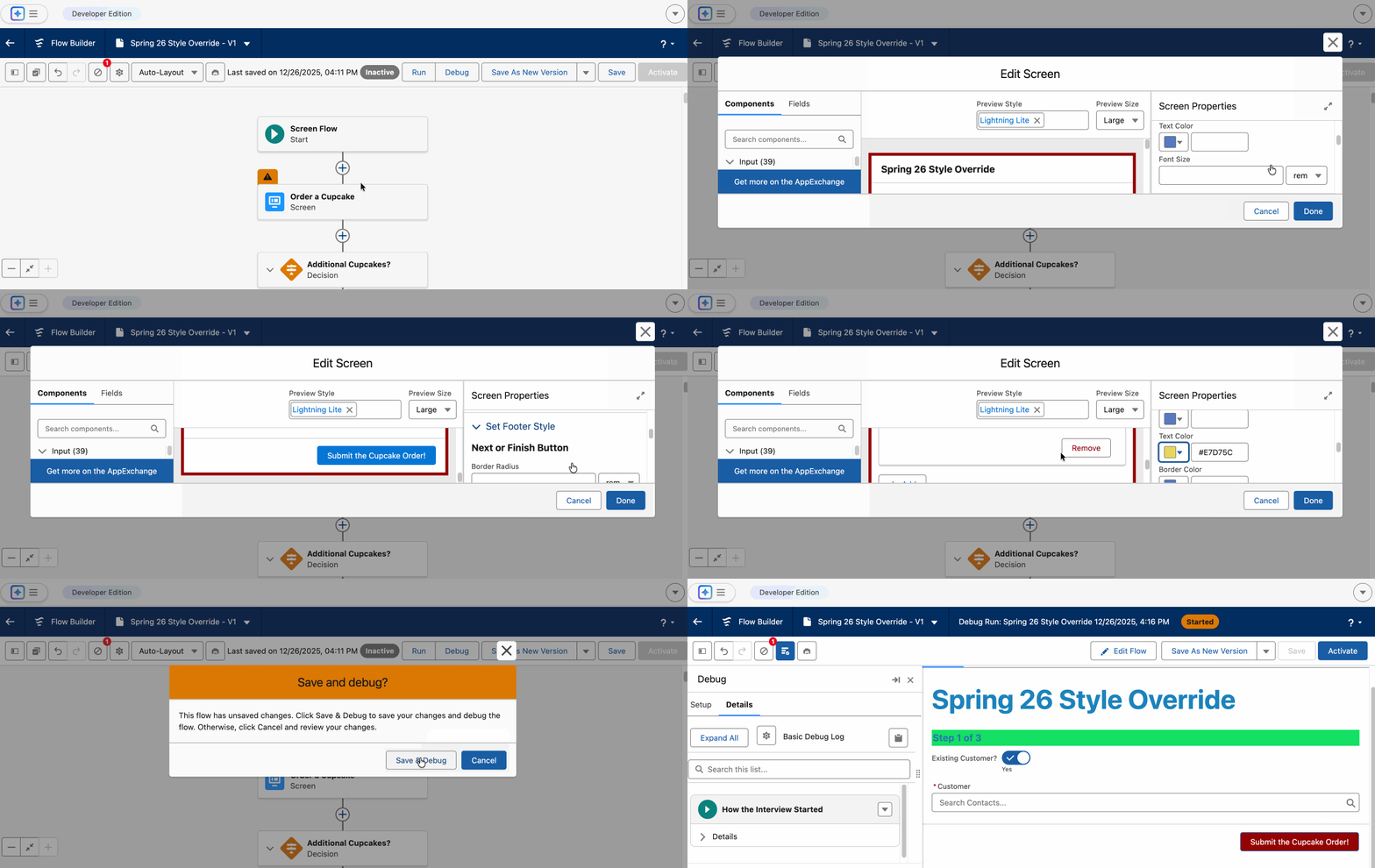
Screen Flows now support native style customization without writing custom LWC.
Overridable style properties:
- Colors: Background, text, border, in-focus text
- Borders: Color, weight (thickness), radius (rounded corners)
- Buttons: Style Next / Finish / Previous / Pause independently, including Hover and Active states
- Layout: Header, Container, and Footer styles per Screen
Components supporting style overrides:
- Basic Inputs: Text, Password, Number, Currency, Date, Date/Time
- Choice Sets: Checkbox, Checkbox Group, Radio Buttons, Picklist, Multi-Select Picklist
- Containers/Layout: Section, Repeater, Display Text, Long Text Area (height now configurable)
Compatible with Lightning Experience, Classic, and Experience Cloud (Aura, LWR, Visualforce with at least one active Community License). Don't turn your Screen Flows into a "Franken-Flow"—too many custom styles make maintenance harder. Consult with your designers before going overboard.
22. File Preview Component
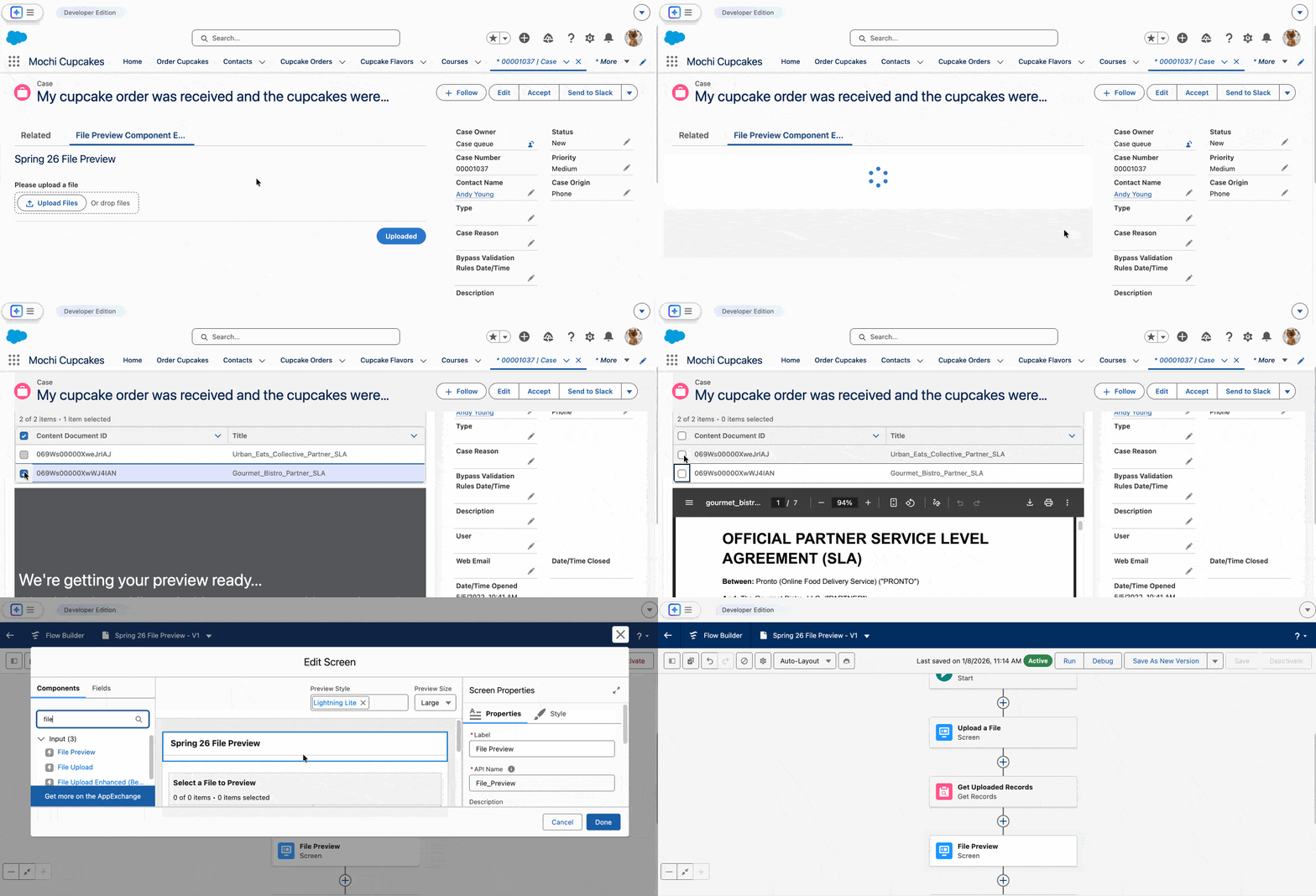
Screen Flows get a new file preview component that lets users view document content directly within the Flow UI without downloading.
Configuration: Drag the File Preview component to a Screen → set Content Document ID to reference the target file. Pro tip: add a Display Text component with context about the file being viewed (e.g., "Below is your contract draft. Please review before clicking Next").
Use cases: previewing contracts during approval flows, viewing employee handbooks during onboarding, MuleSoft for Flow: IDP users comparing extracted fields/tables against manually previewed documents.
23. Message Component
A new standardized message component supporting Info / Warning / Success / Error types with automatic icon and color coding per SLDS standards.
Configuration steps:
- Drag Message component to the target location on the Screen
- Select Message Type (info / warning / success / error)
- Set Message Content (supports formula references to dynamically generate content from field values)
- Set Component Visibility rules as needed
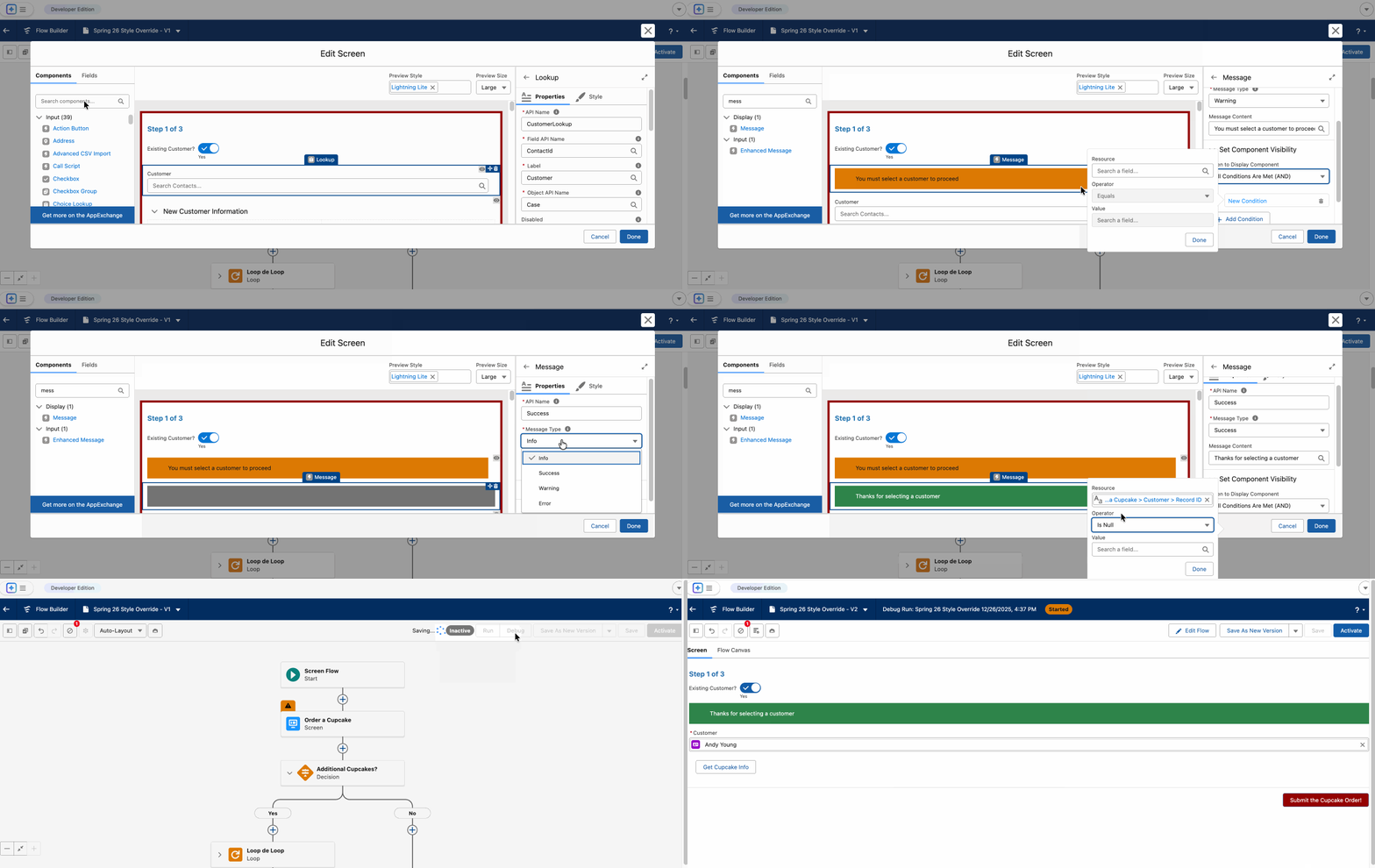
The key difference from the old Display Text + conditional visibility approach is accessibility—the Message component sends alert-level notifications to Screen Readers, while Display Text does not. If your org has accessibility compliance requirements, use Message components.
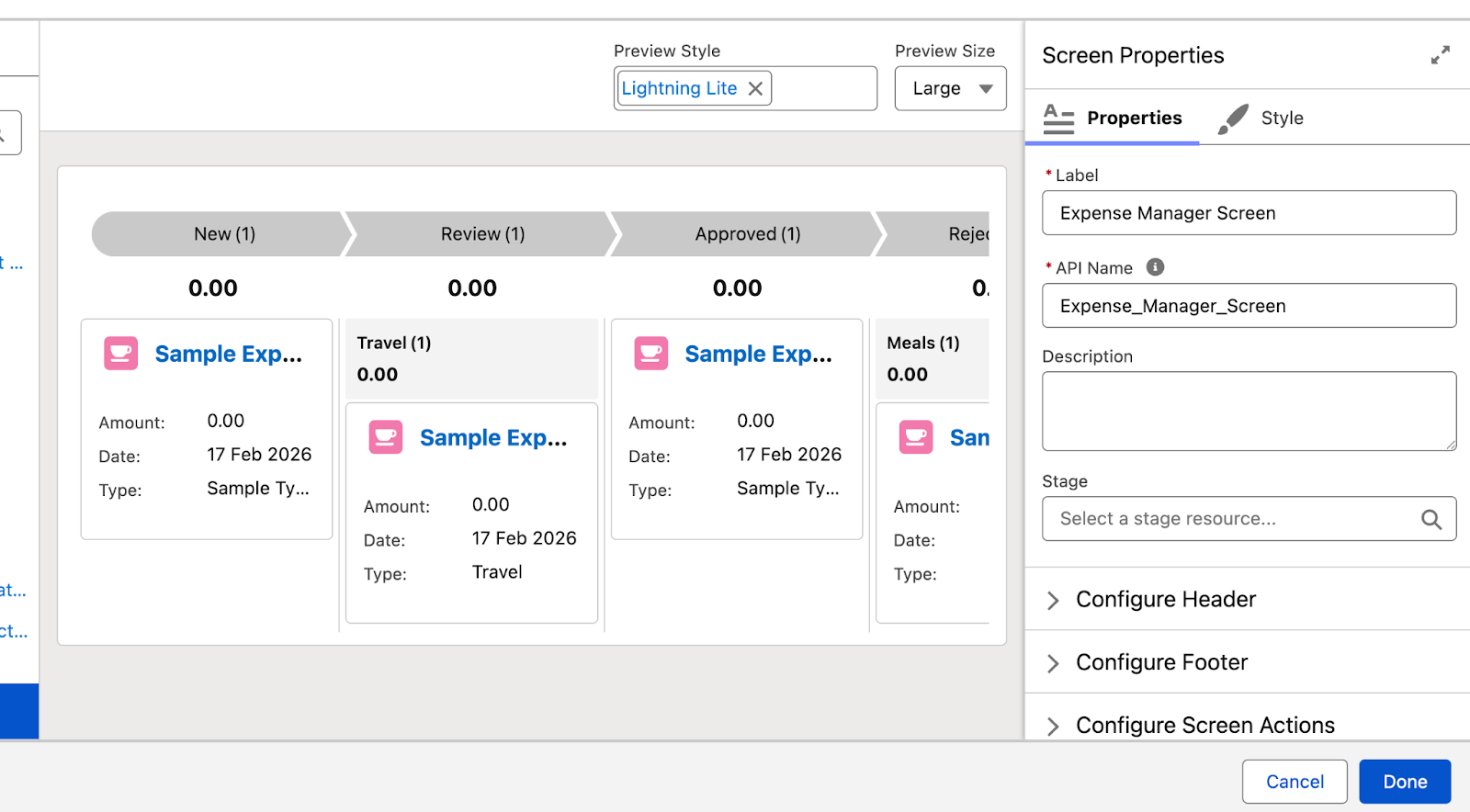
24. Kanban Board Component (Beta)
Screen Flows can now embed a Kanban board component that displays records in columns based on a Picklist field.
Configuration steps:
- Add Kanban Board component to Screen
- Select Record Collection
- Choose a Picklist field for column headers (only Picklist fields supported)
- Configure fields to display on record cards
- Optional: add column-level summary statistics
Positioning is different from List View Kanban: List View Kanban is a daily operations "command center" (frequent view switching, searching); Screen Flow Kanban is a "visual aid" for specific high-touch processes (guided actions, filtered views). Use cases: order/request intake flows, Agent + human orchestration scenarios, approval monitoring Screens, executive/operations visibility. Not suitable for scenarios requiring inline updates.
Beta limitations: read-only display, no drag-and-drop, no inline editing, no status updates from the board, no auto-refresh.
25. Screen Flow Lightning URL Format (GA)
Screen Flows now support a standardized Lightning URL launch format:
Basic format: /lightning/flow/YourFlowApiName
With single parameter: /lightning/flow/Register?flow__recordId={!Case.Id}
With multiple parameters: /lightning/flow/Register?flow__recordId={!Case.Id}&flow__source=Email
Important: Flow variables must have "Available for Input" checked, or URL parameters will be silently ignored.
Benefits: faster loading (Lightning components already cached), browser Back/Forward button support, Lightning Console compatibility (opens in new tab without page refresh), Cosmos theme support, Flow Local Actions support, consistent behavior across browsers. Migrating from old runtime URLs requires no logic changes—just replace the URL prefix.
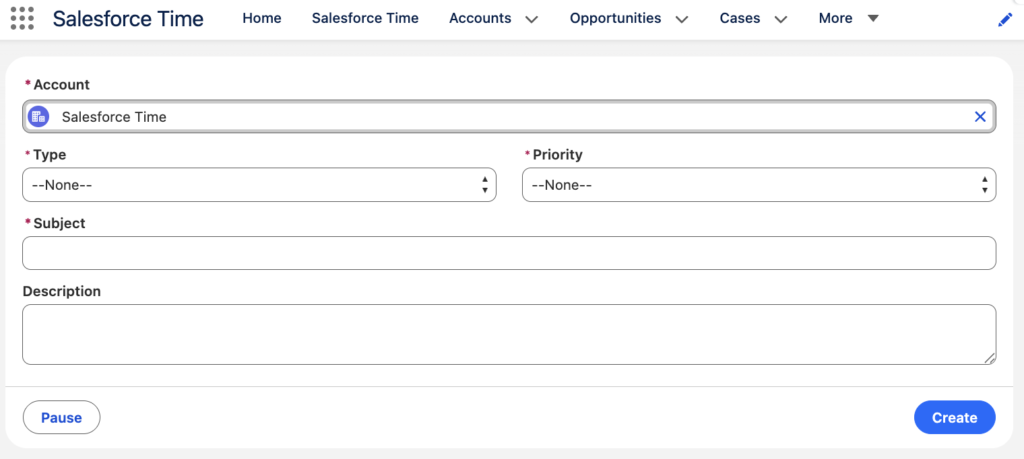
26. Long Text Area Custom Height
The Long Text Area component in Screen Flows now supports configurable height settings. Previously this component had fixed dimensions—users either couldn't see their full input or had wasted space. Spring '26 lets you adjust the height parameter directly in Flow Builder's component properties without writing custom LWC. This feature is part of the component-level styling overrides (Feature #21)—Long Text Area appears in the list of components supporting style overrides with a new Height configuration option.
Flow Testing & Debugging
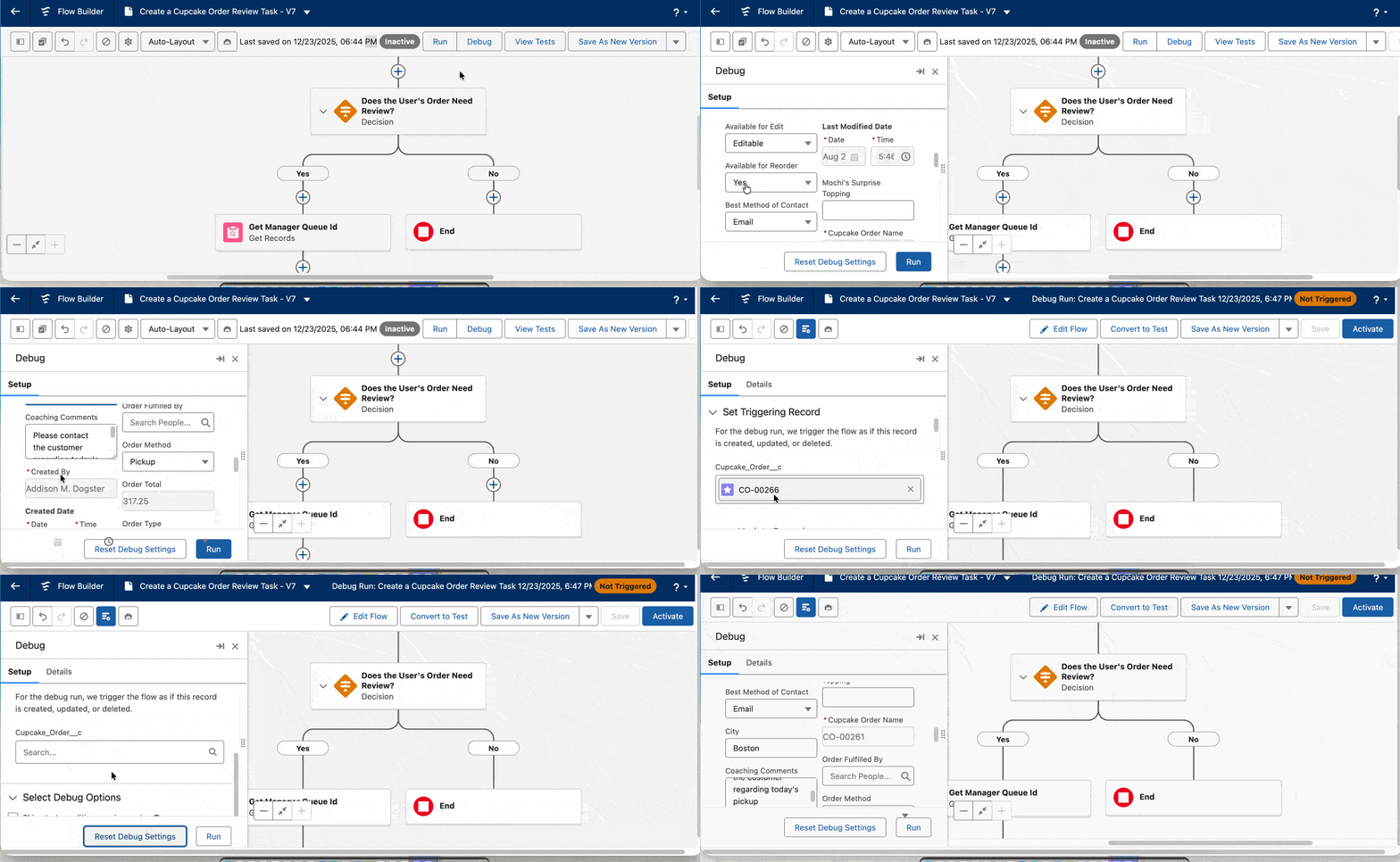
27. Persistent Debug Configuration
Debug settings in Flow Builder now persist throughout your editing session—including test record selections, debug options (like Rollback mode), and input variable values.
Previously, every time you saved the Flow and re-opened the debugger, all configurations reset: re-select your test record, re-enter input variables, re-choose debug options. Make one logic change, test it, spend 30 seconds reconfiguring. Repeat.
Now configurations only clear in three cases: browser refresh, closing Flow Builder, or manually clicking "Reset Debug Settings." For iterative debugging scenarios, testing cycle time drops significantly.
28. Version-Specific Flow Tests
Flow Tests can now be bound to specific versions. Old version tests stay on the old version, new versions get their own tests.
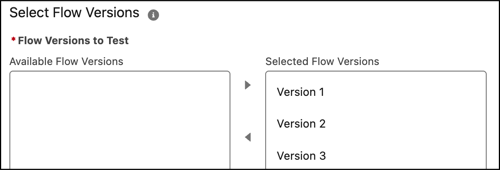
The previous problem: tests only applied to the latest version. Make major changes to a Flow and all old tests break—but those tests were written for the old version. Roll back to the old version and your test coverage is gone. Now each version has its own test suite, independent of other versions.
Flow Management
29. Screen Flow Version Compare
The version comparison feature now extends to Screen Flows (previously only Record-Triggered and Schedule-Triggered Flows were supported). Select any two versions for a diff, identifying changes in Properties, Resources, and Elements.
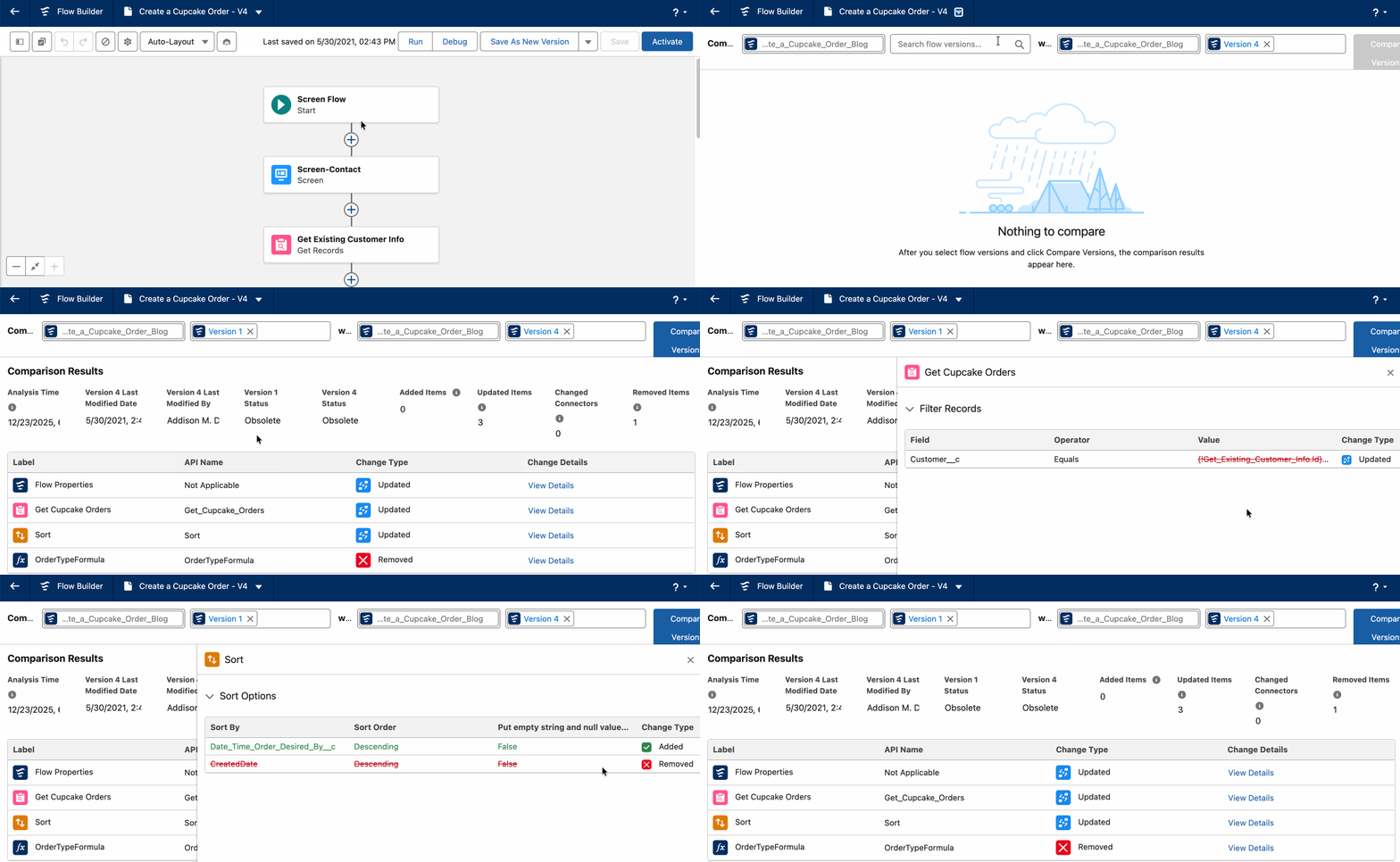
Also supports generating shareable links with preselected versions—send to a colleague and they'll see exactly the two-version comparison view without navigating through the version history themselves. If versions change, the link automatically regenerates.
30. Flow Usage Tab (Automation App)
The Automation Lightning App gets a new Usage tab showing bidirectional Flow dependencies—which parent Flows call this Flow (who depends on me), and which child Flows it depends on (who do I depend on). Includes Subflow and Orchestration dependencies.
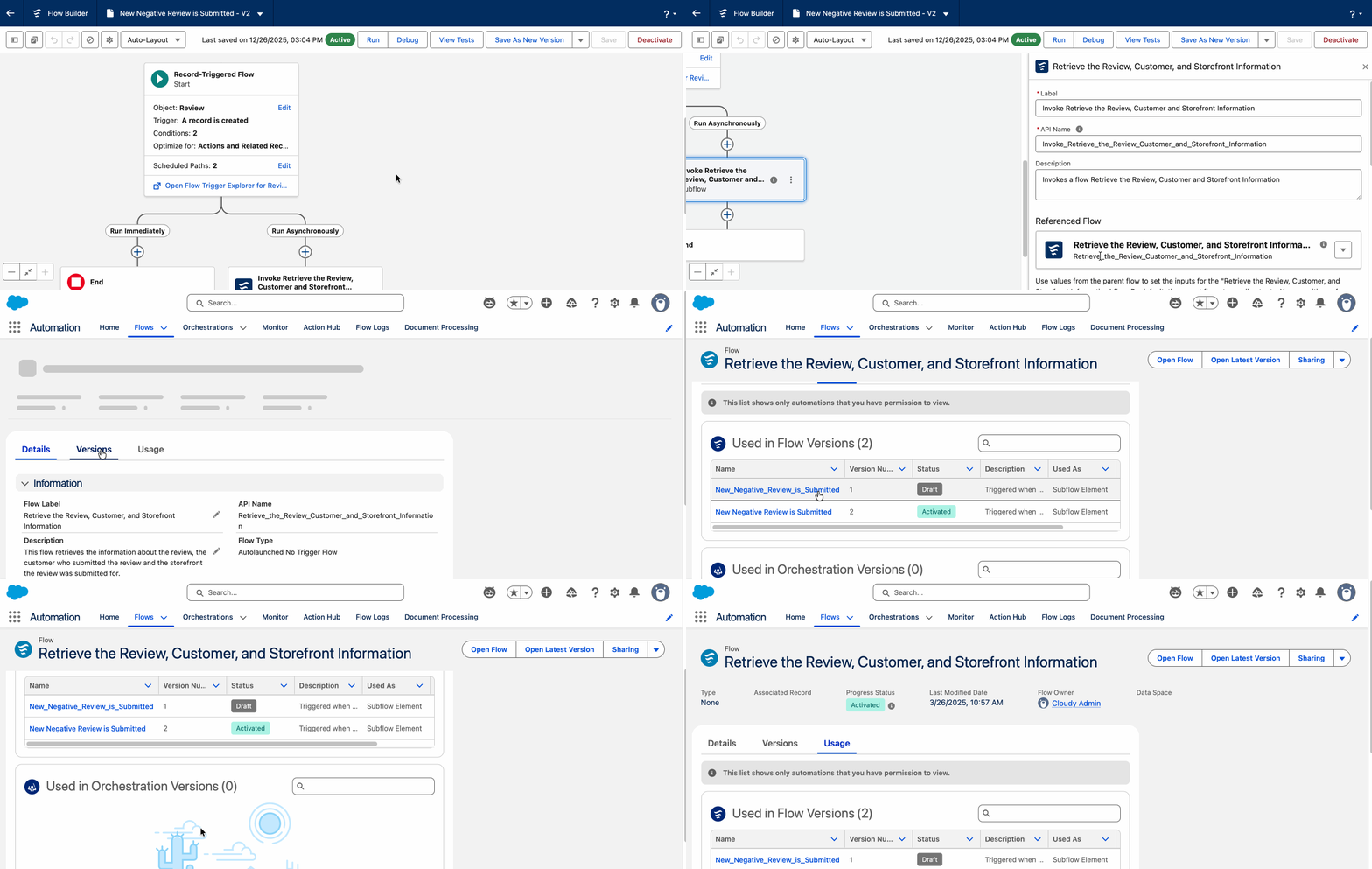
Access: Automation Lightning App → Flows tab → select a specific Flow → Usage subtab. Requires Manage Flow permission.
The view is clear from the Parent Flow perspective too—open a Parent Flow and the Usage tab shows what Subflows and Approval Actions it calls:
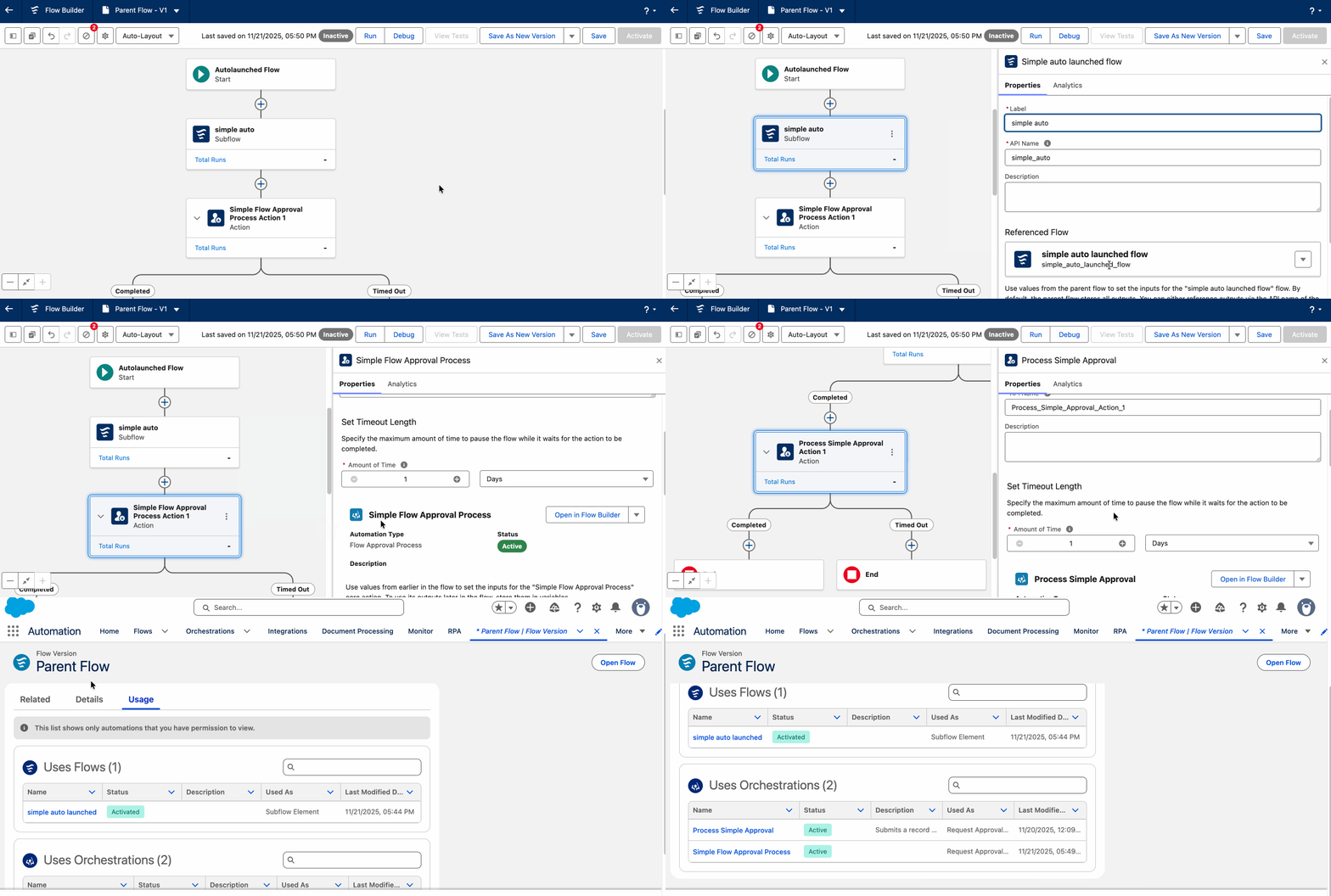
Check Usage before modifying a Flow to avoid the classic "I changed one Flow and broke three others" situation.
31. Action Hub Enhancements (Beta)
Action Hub now shows Invocable Action usage across Flow Builder, Agentforce Builder, and Prompt Builder in a single global view. Click the Agent or Template tabs to jump directly to the Builder where the Action is referenced.
The biggest value: before deleting or editing an Action, verify no AI Agents or Prompt Templates depend on it—prevents automation logic from silently breaking.
32. Flow Logs Tab (Automation App)
The Automation Lightning App gets a new Flow Logs tab built on Data 360 storage, providing centralized performance data for Flow runs—slow Flows, Governor Limit violations, error patterns.
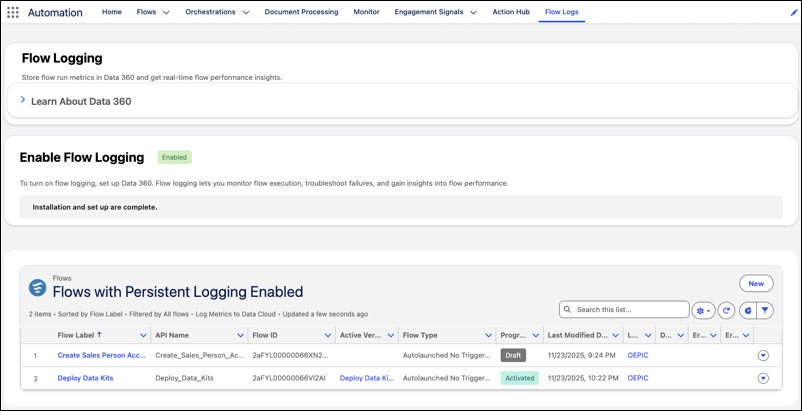
Activation: enable Data 360 first, then enable Persistent Logging on each individual Flow. This isn't a one-click org-wide toggle—you choose per-Flow whether to enable persistent logging. Prioritize enabling it on performance-sensitive or error-prone Flows.
Flow Approval Enhancements
33. Request Approval Component
A new Lightning page component you can drag onto any record page in Lightning App Builder (or Experience Cloud pages) to let users submit approval requests directly—no more custom buttons or URL hacks.
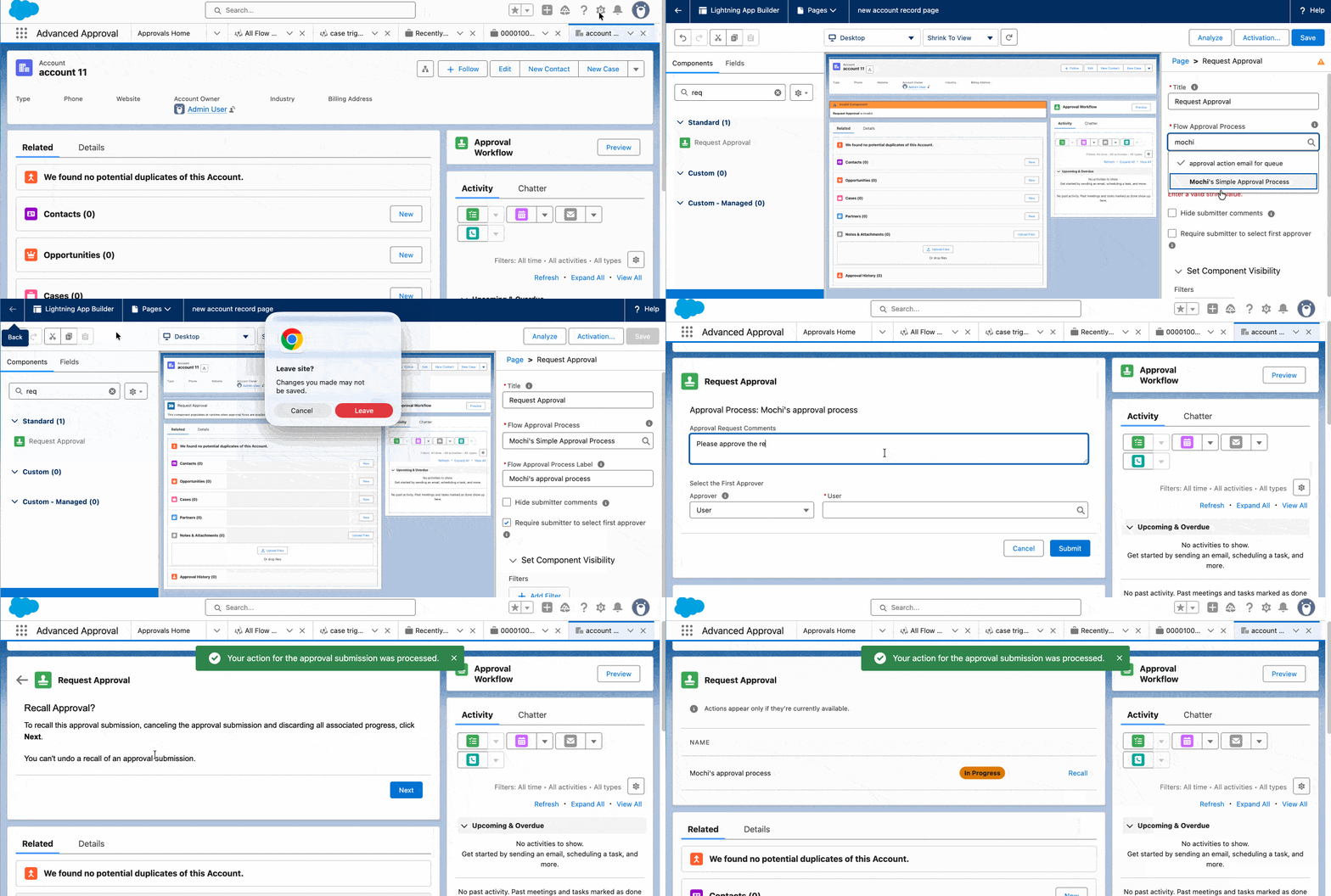
Configuration: In Lightning App Builder, drag the Request Approval component onto a record page, select the corresponding Flow Approval Process, and set Component Visibility filters (e.g., only show when Status = Pending Approval). Requires defining firstApprover (User ID type) and submissionComments (Text type) variables in an Autolaunched Flow. Limitation: only supports Flow-based Approval Processes, not legacy Approval Processes.
34. Approval Usage Tab
The Approvals Lightning App gets a new Usage sub-tab showing bidirectional approval process dependencies. Access: Approvals Lightning App → select a Flow Approval Process or specific version → Usage subtab. The "Used in Flow versions" section shows which Screen Flows and parent Flows reference this approval process.
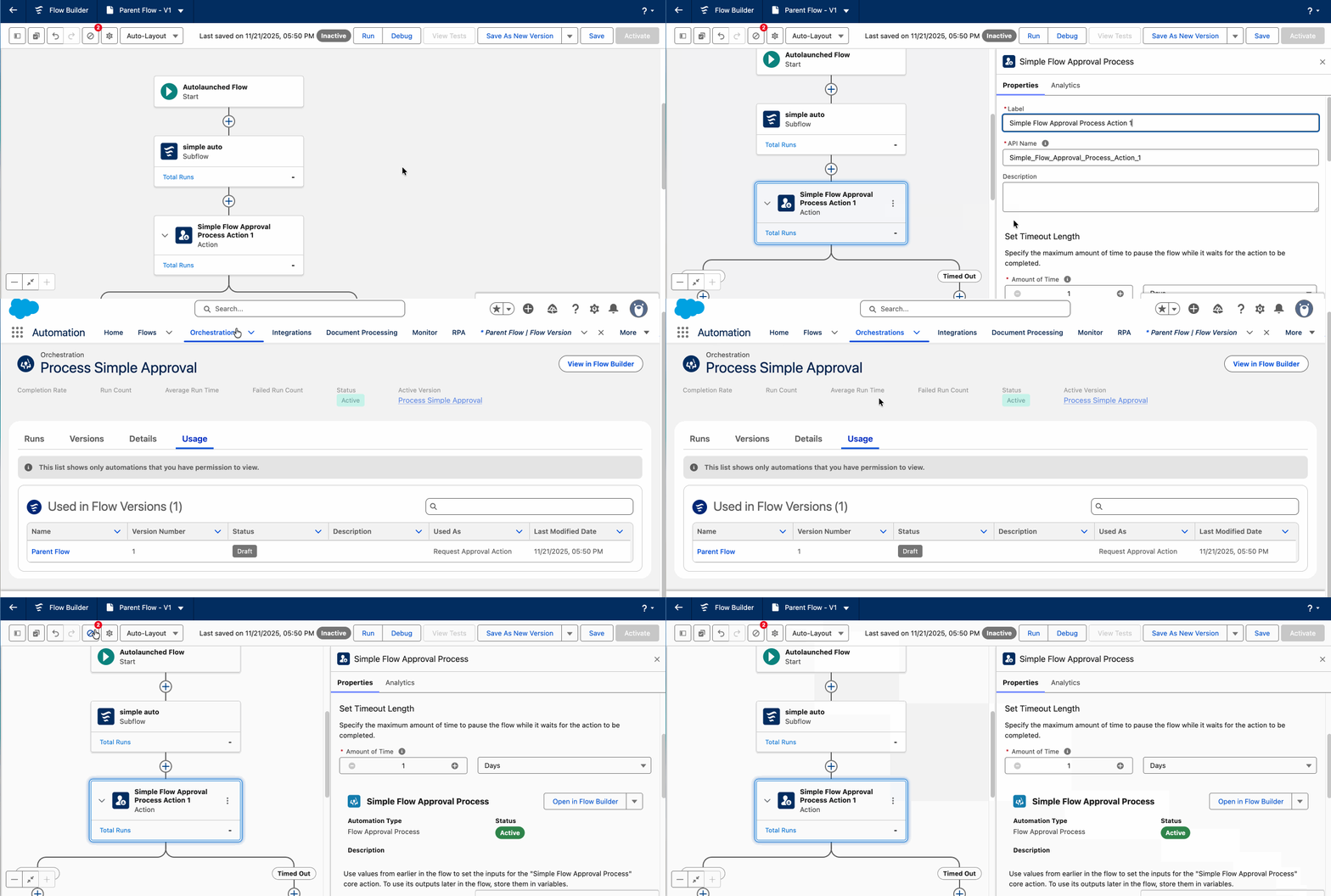
Run impact analysis before modifying any approval process—if 5 Screen Flows use this approval, changing the logic could impact all 5. Much better than deleting a Subflow and discovering 3 Parent Flows are now broken.
35. Approval Process Segment Debugging

When debugging Flow Approval Processes, you can specify start and end stages instead of running through the entire process. If you have a 10-step approval and only want to test the logic at step 9—previously you'd have to manually walk through steps 1-8, clicking Approve at each one. Now just set Start Point = Stage 9 and skip everything before it.
For skipped steps, use Configure Test Input to provide mock values, ensuring downstream steps have correct input data. End Point can also be specified—no need to run through the entire remaining process.
36. Approval Step Test Outputs
In Rollback/Default mode, you can selectively skip specific steps in a Flow Approval Process and provide mock data (Test Outputs) for those steps. Used alongside segment debugging (Feature #35)—when you specify a start stage, the skipped intermediate steps need expected output values so downstream steps receive correct inputs. Enables surgical precision testing without executing all preceding approval stages.
37. Complete Approval Work Items During Debug
While debugging Flows, when execution reaches an approval step, an approval tab automatically opens. You can act as an approver and click Approve or Reject directly in Flow Builder's Work Guide tab—the Flow continues executing subsequent logic without switching to another page.
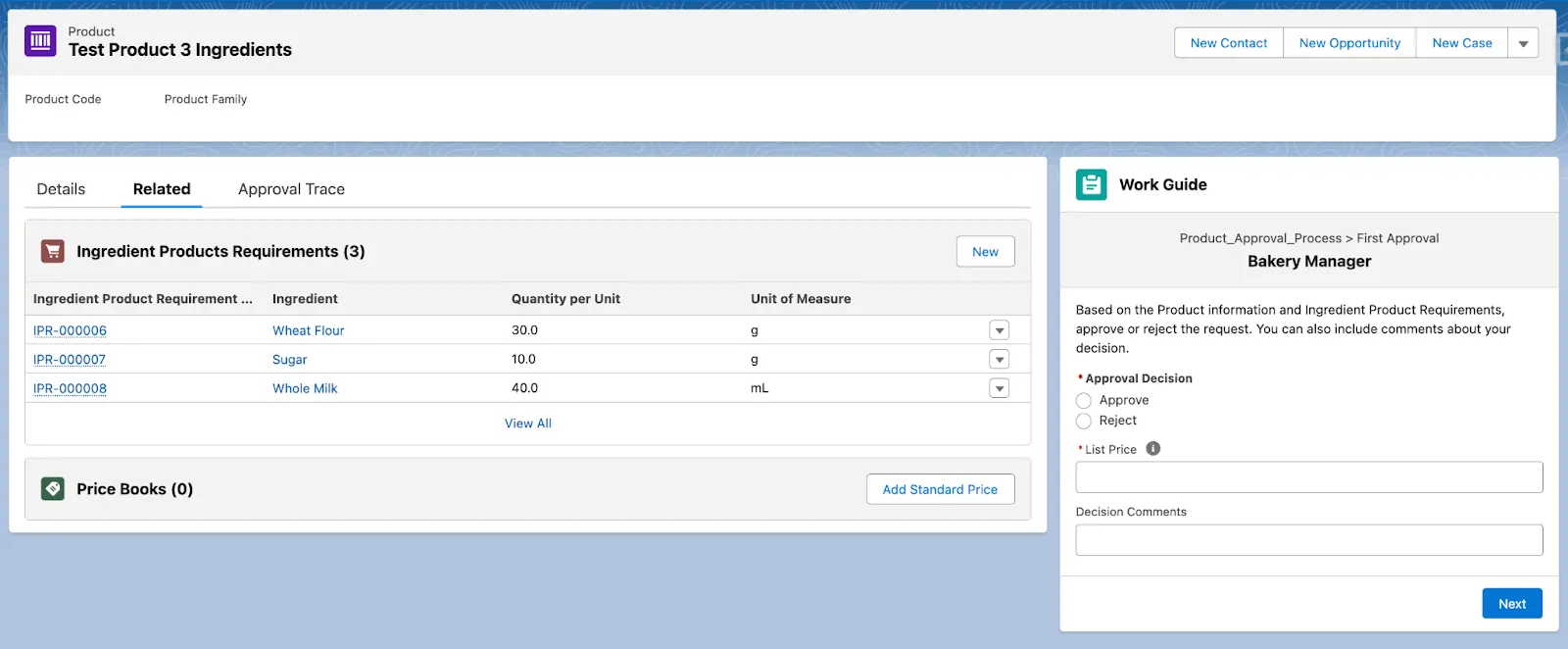
Prerequisite: You must uncheck "Run automation in rollback mode" in the debug settings—approval work items aren't generated in Rollback mode because approval records need actual processing. End-to-end testing of approval processes no longer requires window-hopping.
Flow Orchestration Enhancements
38. Create Orchestrations from Automation App
Orchestrations can now be created directly from the Orchestrations tab in the Automation Lightning App—no more hunting through the Setup menu. Click the Orchestrations tab → New → choose Autolaunched Orchestration or Triggered Orchestration. The UI dynamically shows a "Frequently Used" section that surfaces the top three orchestration types based on your creation history.
Requires the "View Orchestrations in Automation App" permission—check this in Permission Sets:
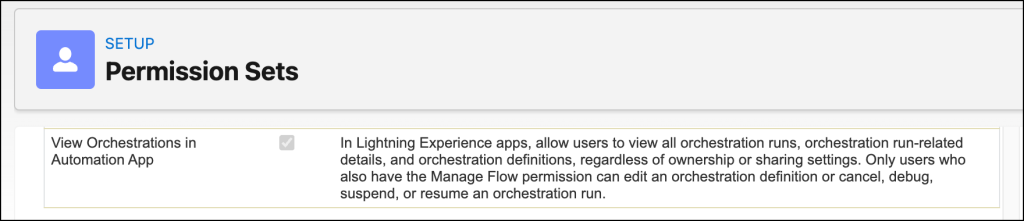
Note: View permission only allows viewing. Editing orchestration definitions or Cancel/Debug/Suspend/Resume operations also require Manage Flow permission.
39. Orchestration Usage Tab
Like Flow Usage, Orchestrations now have a Usage tab—select an Orchestration or specific version in the Orchestrations tab and click the Usage subtab to see all Flows and Subflows it depends on.
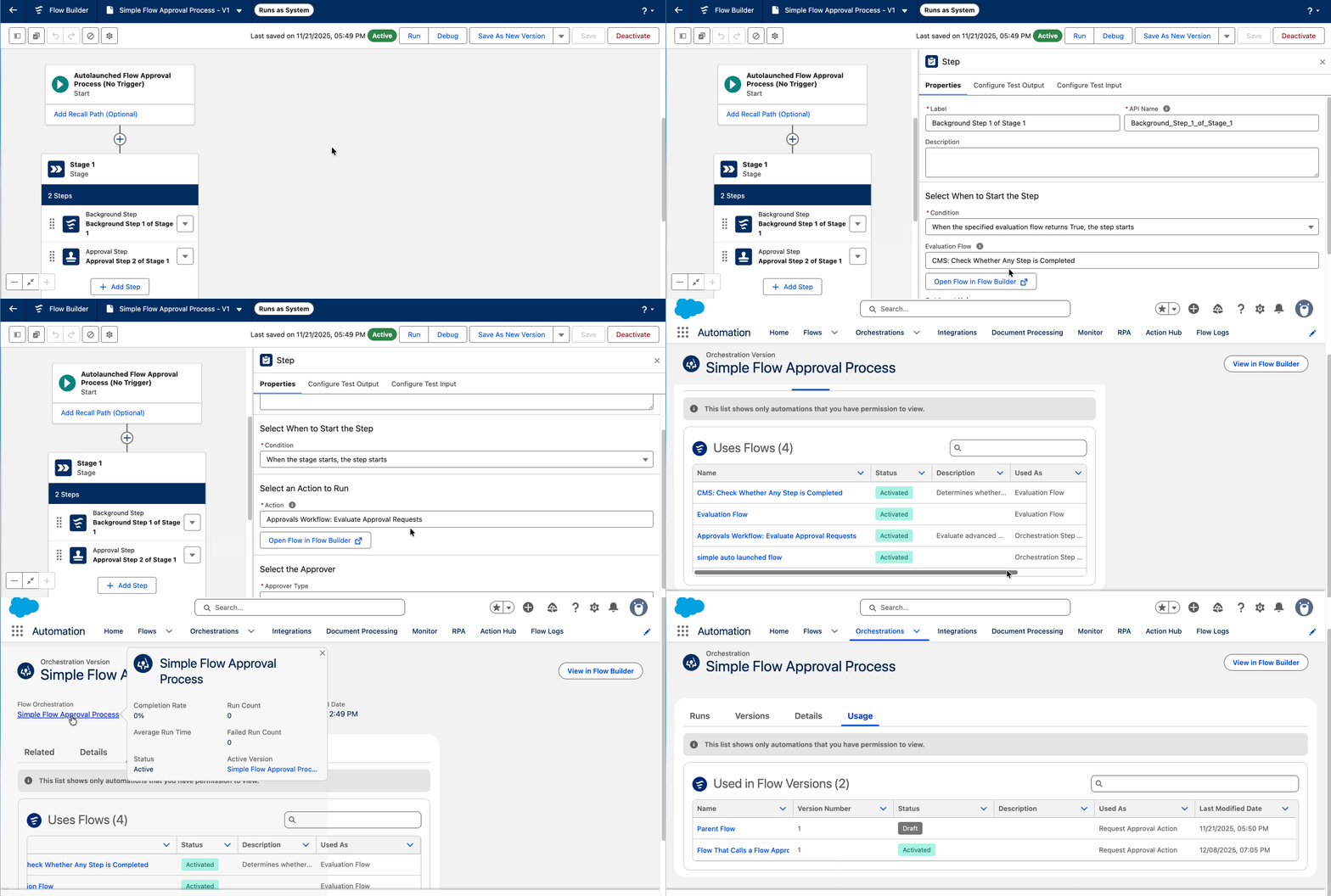
Prevents the "house of cards" collapse—before modifying an underlying Flow, verify no Orchestration depends on it. If one does, changing that Flow's logic could break the entire Orchestration, and Orchestrations involve multiple users across multiple stages, making troubleshooting far more expensive than with regular Flows.
40. Orchestration Segment Debugging
Jump directly to a specific stage in an Orchestration for debugging. Open the Orchestration → Debug → set Start Point and End Point → use Configure Test Input to provide mock data for skipped stages → Run.
For complex multi-user, multi-stage Orchestrations (say, a contract approval involving Sales, Legal, and Finance roles), previously testing the final Finance review stage meant having three users each complete their respective steps first. Now jump straight to Finance review, with preceding stages filled by mock data.
41. Orchestration Step Test Outputs
Provide mock data (Test Outputs) for skipped Orchestration steps, letting you test specific stages without running the full automation pipeline. Same concept as approval step test outputs (Feature #36)—skipped steps need you to manually specify output values so downstream steps receive correct inputs and continue executing.
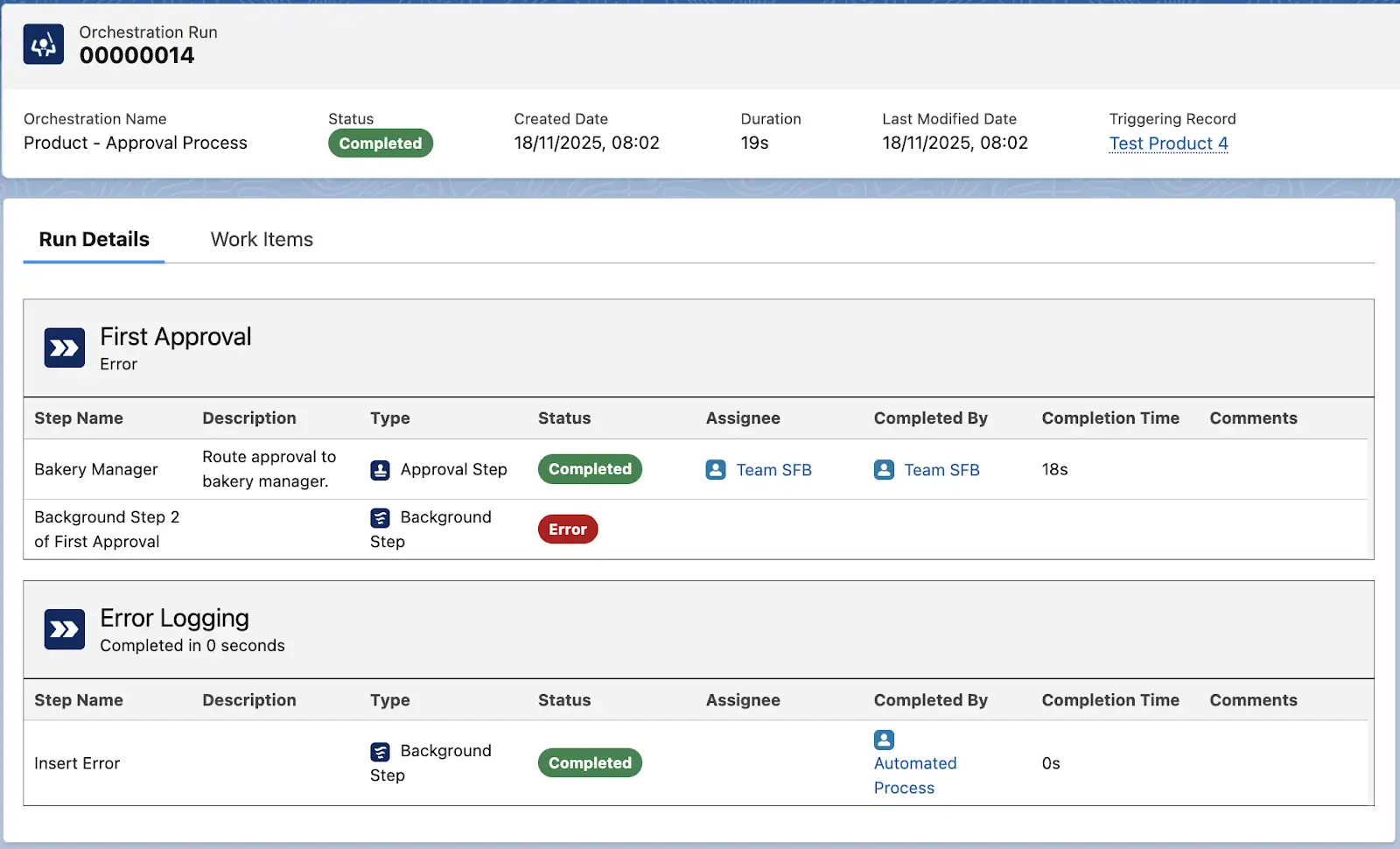
42. Complete Orchestration Work Items During Debug
Complete Orchestration work items directly in Flow Builder's Work Guide tab. When debugging reaches an Interactive Step, the Work Guide tab shows the corresponding work item for you to complete directly.
Prerequisite: You must uncheck "Run automation in rollback mode"—same requirement as approval work item completion (Feature #37), since work items need actual processing. Combined with segment debugging (Feature #40) and test outputs (Feature #41), you can run end-to-end Orchestration testing entirely within Flow Builder without switching between multiple windows.
File Management
43. File Malware Scanning (Beta)
Setup → Salesforce Files → General Settings now includes a "Scan files for viruses or malware (beta)" option. When enabled, the system automatically scans files during upload and download, blocking anything with detected malicious content.
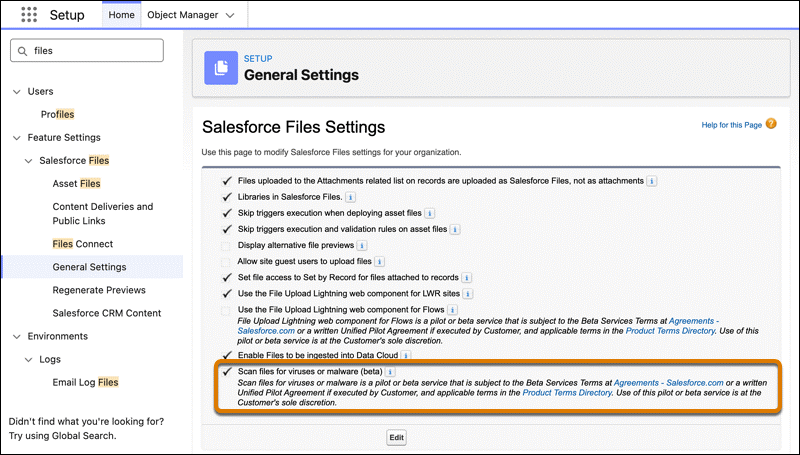
For compliance-heavy industries (financial services, healthcare), file scanning previously required third-party tools—now it's native. Beta caveat: scanning may slow down large file uploads, so test in Sandbox first.
44. File Size Limit Raised to 10 GB
Individual file size limit goes from 2 GB to 10 GB, applying to Files Home, Libraries, and record Files Related Lists. Chatter attachments and LWR Experience Cloud sites remain at 2 GB. No more splitting large videos, CAD files, or datasets.
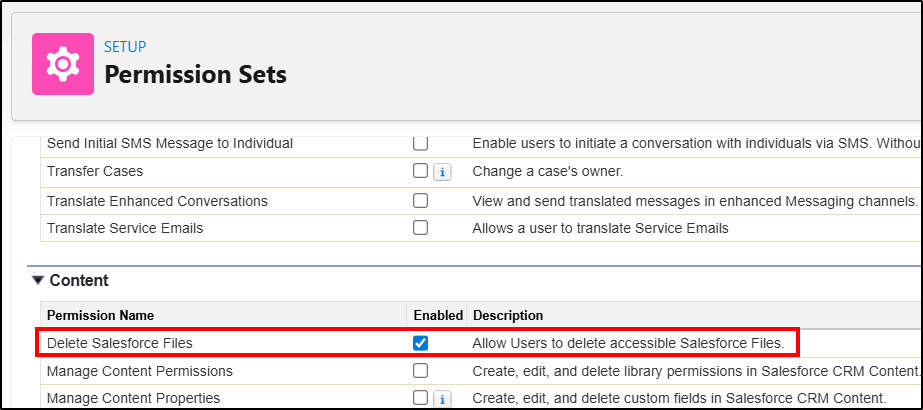
45. Delete Salesforce Files Granular Permission
Previously, deleting files you had view access to required "Modify All Data"—basically a master key. Spring '26 adds a "Delete Salesforce Files" option in the Permission Set Content area, allowing deletion of only files the user has access to without granting Modify All Data.
Security Enhancements
46. Connected App Creation Blocked by Default
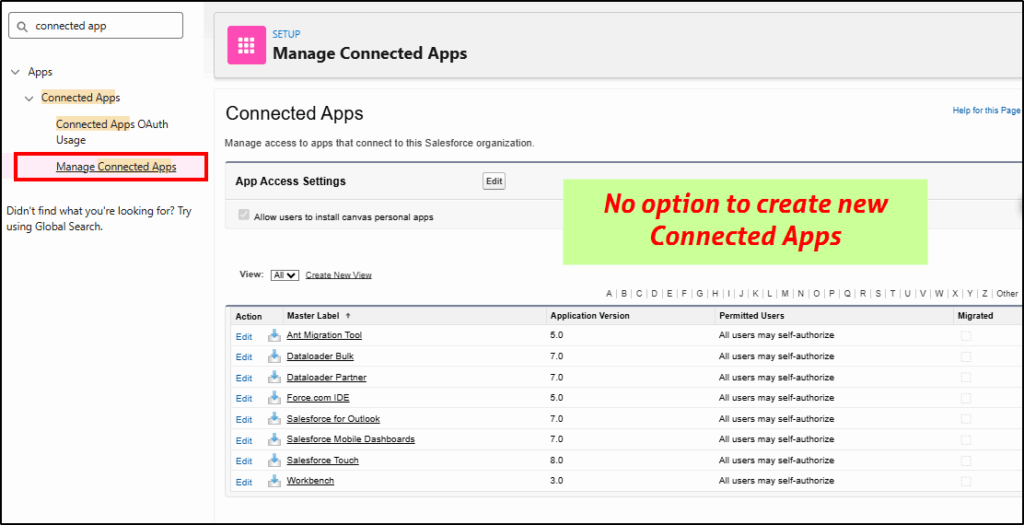
New orgs now block Connected App creation by default. Existing Connected Apps continue working normally; new integrations should use External Client Apps—more granular OAuth scopes, better security framework. To re-enable Connected App creation, contact Salesforce Support.
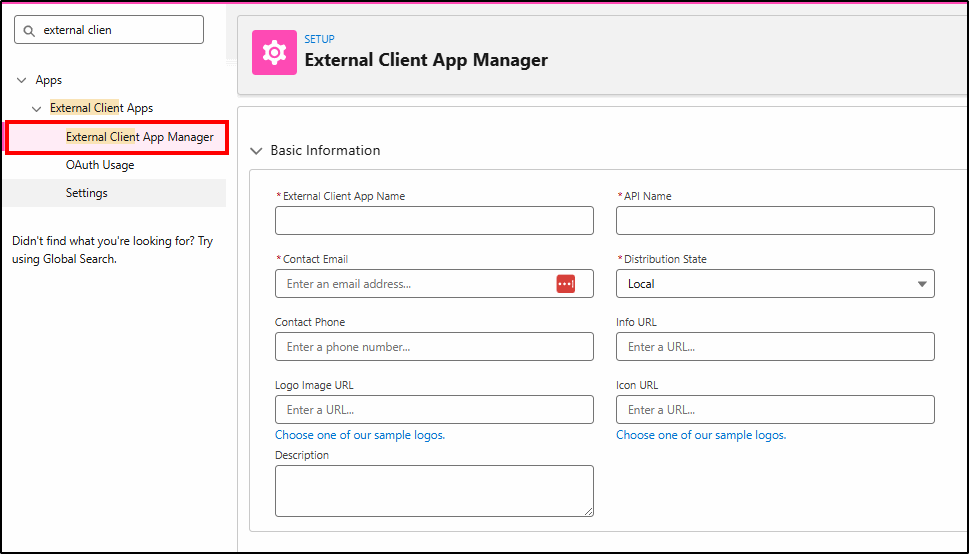
New integrations go through Setup → External Client Apps → External Client App Manager, filling in App Name, API Name, Contact Email, and Distribution State.
47. Uninstalled Connected App Access Monitoring
The Connected Apps OAuth Usage page now shows a "Denied Attempts Due to Usage Restriction" column and "Last Denied Attempt" timestamp. See which Apps tried to connect and were rejected, then choose Install (allow) or Block. Helps distinguish legitimate user requests from potential threats.
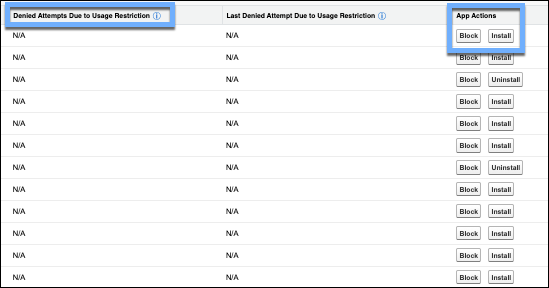
There's also an "Approve Uninstalled Connected Apps" permission that bypasses restrictions—only assign this to system administrators, not regular users.
48. Sandbox Username Uniqueness Enforcement
Salesforce now blocks unfreezing users whose usernames already exist in another Sandbox, preventing cross-Sandbox identity confusion. When you hit this restriction, the fix is appending a Sandbox identifier suffix to the username (e.g., user@company.com._sandboxname).
49. TLS Certificate Lifecycle Shortening
Industry-wide certificate validity is shrinking: max 200 days as of March 2026, dropping to 100 days by March 2027, and 47 days by March 2029. Manual certificate management will soon become untenable.
Action items:
- Assign the Expired Certificate Notification permission to admins
- Use the Certificate Metadata API for automated renewal
- Stop Certificate Pinning—certificates will rotate too frequently for pinning to be viable
50. IPv6 Support
Salesforce is introducing IPv6 address support. If your org uses IP Allowlists to restrict access (currently IPv4-only), you'll need to add IPv6 address ranges or users and integrations may get blocked. Alternatively, migrate to Domain Allowlist or SNI Allowlist for more flexibility and less breakage from address changes.
Government Cloud rolls out early 2026; other orgs get two months' advance notice.
51. My Trust Center (Beta)
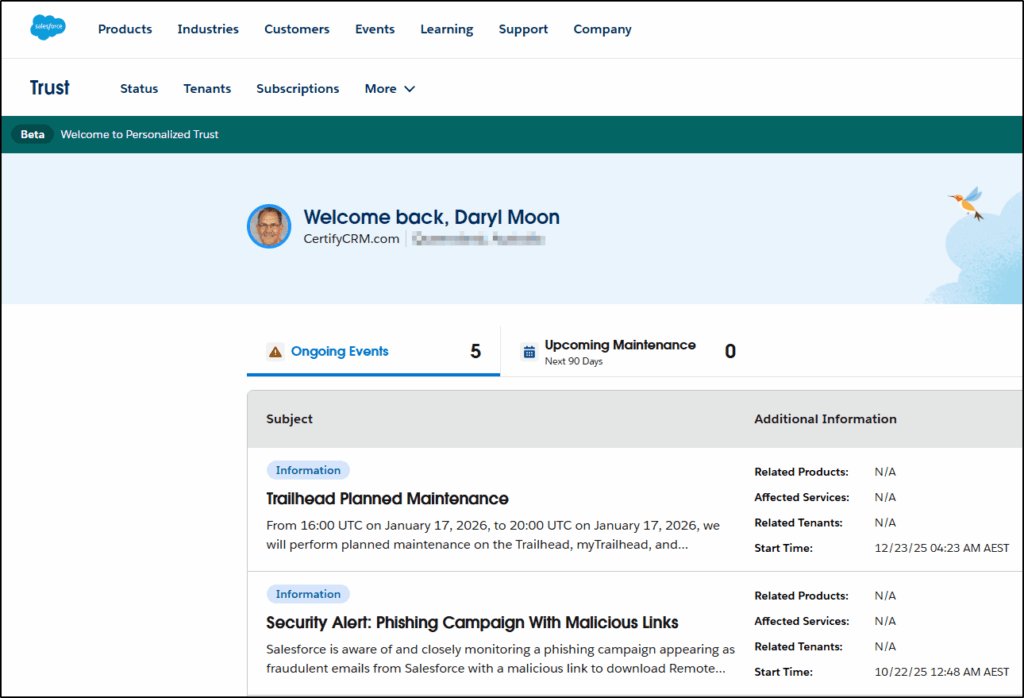
my.trust.salesforce.com provides authenticated, org-specific service health information. Unlike the public trust.salesforce.com, My Trust Center requires login and shows the actual status of services your org uses—including incident history (up to one year), maintenance schedule previews (up to 90 days), and custom subscription notifications. Now also tracks Heroku and Spiff status.
52. Health Check New Tracking Items
The Health Check panel adds 7 new security setting tracking items, including MFA status, SAML enablement status, and session management controls. Brings identity verification and access management security metrics into a unified scoring view—previously these metrics were scattered across different Setup pages.
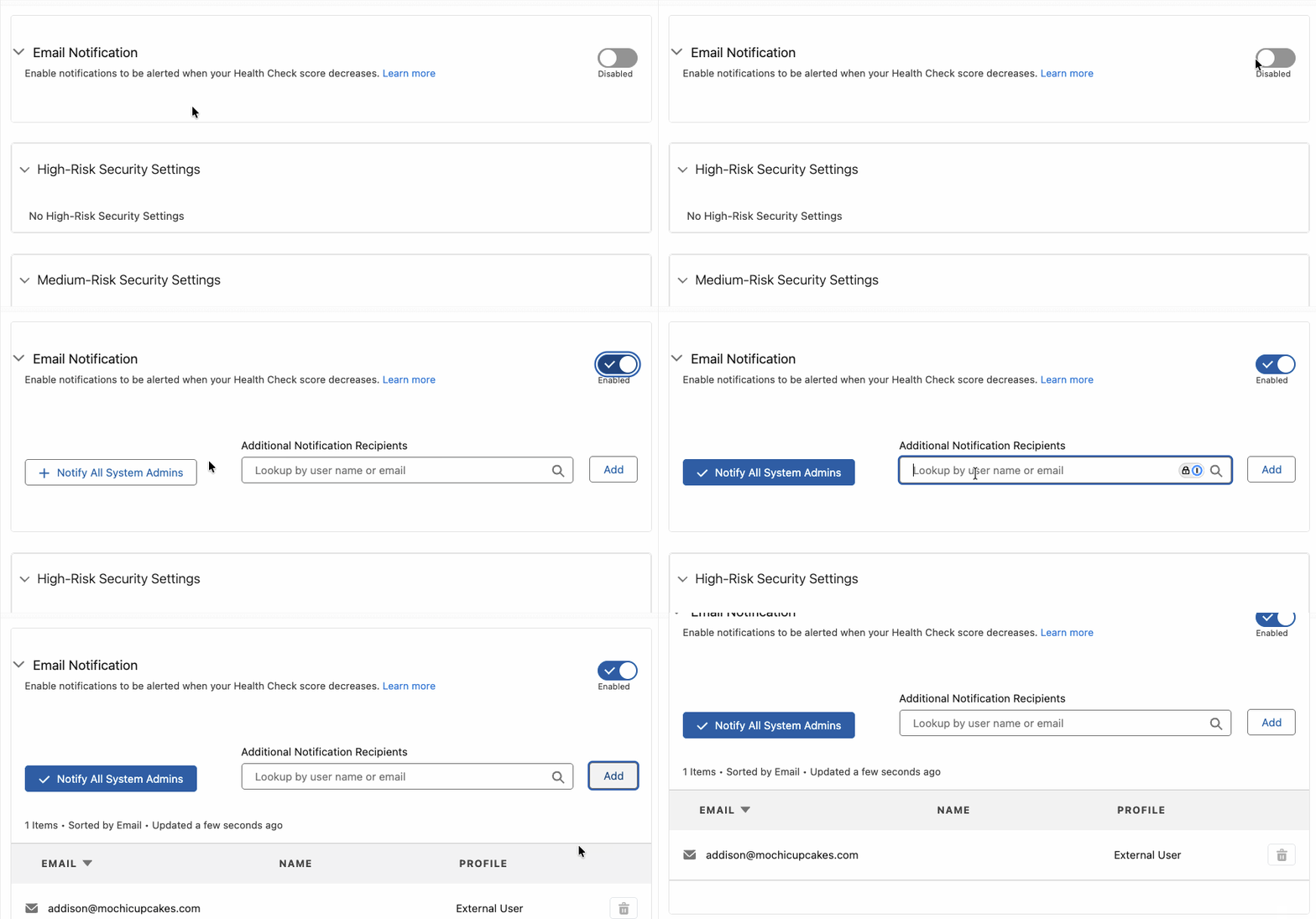
53. Health Check Proactive Notifications
Admins now receive automatic email notifications when Health Check scores change. Triggers include session setting modifications, password policy changes, or other security configuration updates. No more daily manual trips to the Health Check page.
Mobile & Design
54. Mobile Minimum System Requirements Raised
Salesforce Mobile App minimum requirements now require Android 11.0+ (WebView 90.0+) and iOS 17.0+. If your field team is still on older devices, plan device upgrades ahead of time—after go-live, older devices simply won't be able to run the Salesforce App.
55. Custom Push Notification Actions (Beta)
Mobile push notifications can now have action buttons configured—users can approve, close Cases, follow up on Deals, and more directly from the lock screen without opening the Salesforce App and finding the record. Especially useful for approval workflows and Field Service scenarios.
56. Dark Mode Expansion (Beta)
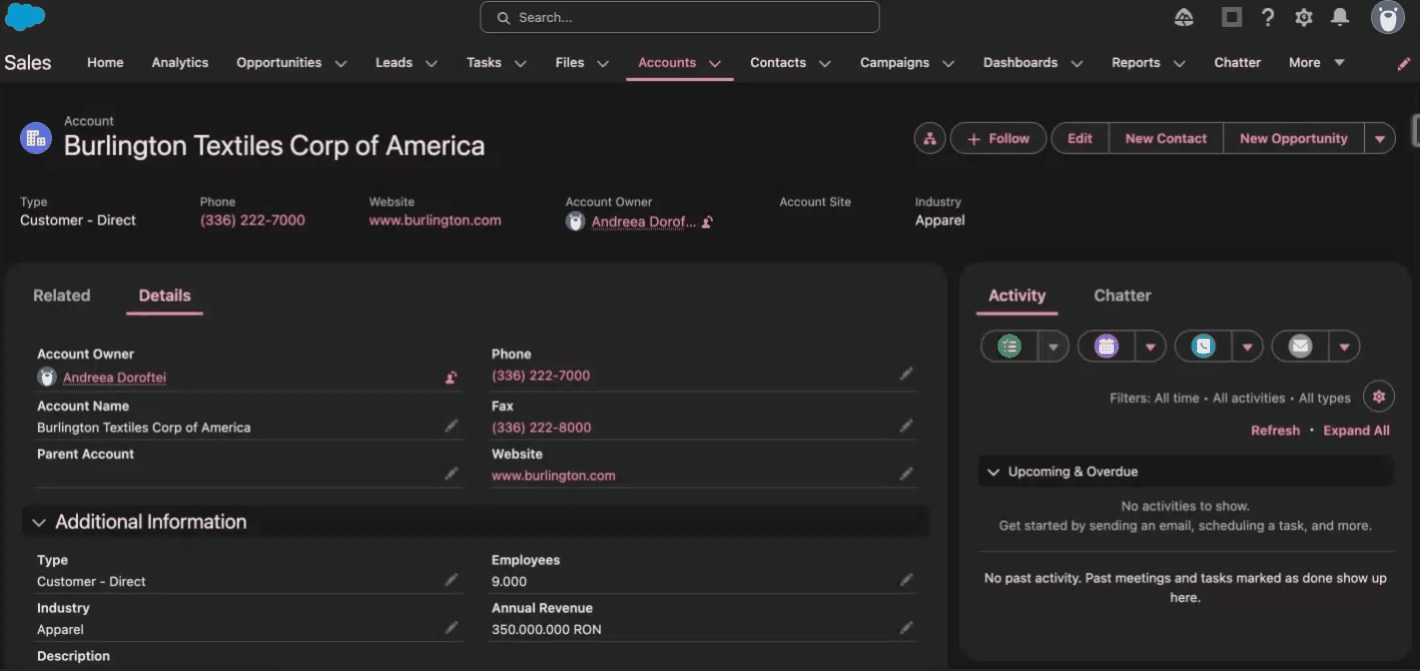
Dark Mode expands from Starter Suite to Free Suite, Pro Suite, Professional, Enterprise, and Developer editions. Enable through Theme settings: "Let users enable dark mode" toggle. Based on SLDS 2 theme configuration.
Release Update: Async Sharing Recalculation
57. Asynchronous Sharing Calculation
This is an under-the-hood architecture change: record access permission recalculations shift from synchronous to asynchronous. Previously in large orgs, modifying a user's Role or Group triggered synchronous sharing calculations that could cause system lag or even timeouts. Async processing no longer blocks the current operation.
What admins need to watch for: if your Apex code or Flow logic depends on "query sharing results immediately after modifying sharing," you may encounter data inconsistencies—because async calculations take time. Review all Apex Triggers and Flows that depend on sharing and ensure they can handle a brief delay. This isn't an optional optimization—it's a Release Update that auto-activates.