How Aura and LWR Actually Differ
Experience Cloud currently runs on two runtime architectures: Aura and LWR (Lightning Web Runtime). Aura is the legacy architecture—it fetches component data dynamically on every page load, which makes it slow but means changes show up instantly. LWR is the new architecture—it pre-compiles all components and styles into static assets at publish time, enabling sub-second page loads, but requiring a re-publish for every change to become visible to site visitors.
This goes far beyond just speed. The security model, CSS mechanism, and component compatibility are fundamentally different:
| Dimension | Aura Sites | LWR Sites |
|---|---|---|
| Runtime | Aura Framework, dynamic rendering | Lightning Web Runtime, static pre-compilation + CDN caching |
| Component Model | Supports Aura components and LWC | LWC only — Aura components are completely unsupported |
| Security Model | Lightning Locker | Lightning Web Security (LWS) |
| CSS Mechanism | Global CSS editor, styles can bleed across components | Shadow DOM scoped isolation, --dxp custom properties |
| URL Structure | Includes /s/ prefix, e.g. /s/mypage | No /s/ prefix (unauthenticated sites), directly /mypage |
| Publishing | Component changes take effect immediately | All changes require publishing in Experience Builder |
| Route Limit | No hard limit | Maximum 500 routes, recommended to stay under 250 |
| Head Markup | Not editable | Supports custom meta tags, title, stylesheet links |
In short: LWR trades "instant visibility" for "sub-second loading." If your site still runs on an Aura template (Customer Service, Customer Account Portal, Partner Central, etc.), migration is inevitable—Salesforce has been shipping new Experience Cloud features (Expression-based Visibility, Enhanced CMS, GEO) exclusively for LWR sites for several releases now.
Pre-Migration Assessment Checklist
Migrating from Aura to LWR isn't as simple as "create a new LWR site and move pages over." Before touching anything, get clarity on these items:
Inventory Your Aura Component Dependencies
LWR does not support Aura components—period. This is the single biggest migration blocker. Open Experience Builder, go through each page, and click the Page Structure icon to record which custom Aura components are in use. Standard Aura components (like the legacy Record Detail or Related List) have LWC equivalents in LWR, but custom Aura components must be manually rewritten as LWC.
A practical approach: use SFDX to pull down the site metadata into VS Code, search for all .cmp file references, and build a component spreadsheet. Tag each component by complexity (simple display, data interactive, relies on Aura events). Prioritize the complex ones for rewrite scheduling.
Assess CSS Migration Scope
The global CSS editor available in Aura sites does not exist in LWR. Every global style you wrote in Aura—those .cCenterPanel, .forceCommunityThemeHeaderDesktop selectors—will silently stop working in LWR. The styling system is entirely different:
- Theme Panel: Configure brand colors, fonts, and other global variables in Experience Builder
--dxpStyling Hooks: A set of cross-component CSS custom properties—set one hook to affect multiple components simultaneously- CSS Parts: Fine-grained overrides on pre-approved DOM parts inside standard components
sfdc_cms__stylesdirectory: Manage custom CSS files via SFDX within the DigitalExperienceBundle metadata
If your Aura site's CSS is under a few hundred lines, the migration effort is manageable. If you have thousands of lines of global overrides, audit which styles are actually needed versus legacy hacks—use the migration as an opportunity to clean house.
Confirm Page Layout Compatibility
Aura template page layouts need conversion to Flexible Layouts in LWR. Flexible Layouts let you create multiple columns, resize them freely, and stack and reorder sections—significantly more flexible than Aura's fixed layouts, but it means you need to re-plan every page's block structure.
Check URL Structure and SEO Impact
Aura sites include a /s/ prefix in URLs (e.g., https://yourdomain.com/s/contact-us). Unauthenticated LWR sites drop this prefix entirely (just https://yourdomain.com/contact-us). If your site is already indexed by Google or has external backlinks pointing to old URLs, you must set up 301 redirects post-migration or you'll lose SEO authority and traffic.
Confirm Licensing and Feature Requirements
The Build Your Own (LWR) template doesn't require a separate CMS license. However, if you use Enhanced CMS Workspace features (CMS content search, multilingual content management), verify that your org has the corresponding capabilities enabled. LWR sites support up to 20 languages.
Six-Step Migration: The Complete Aura to LWR Process
Step 1: Create the New LWR Site
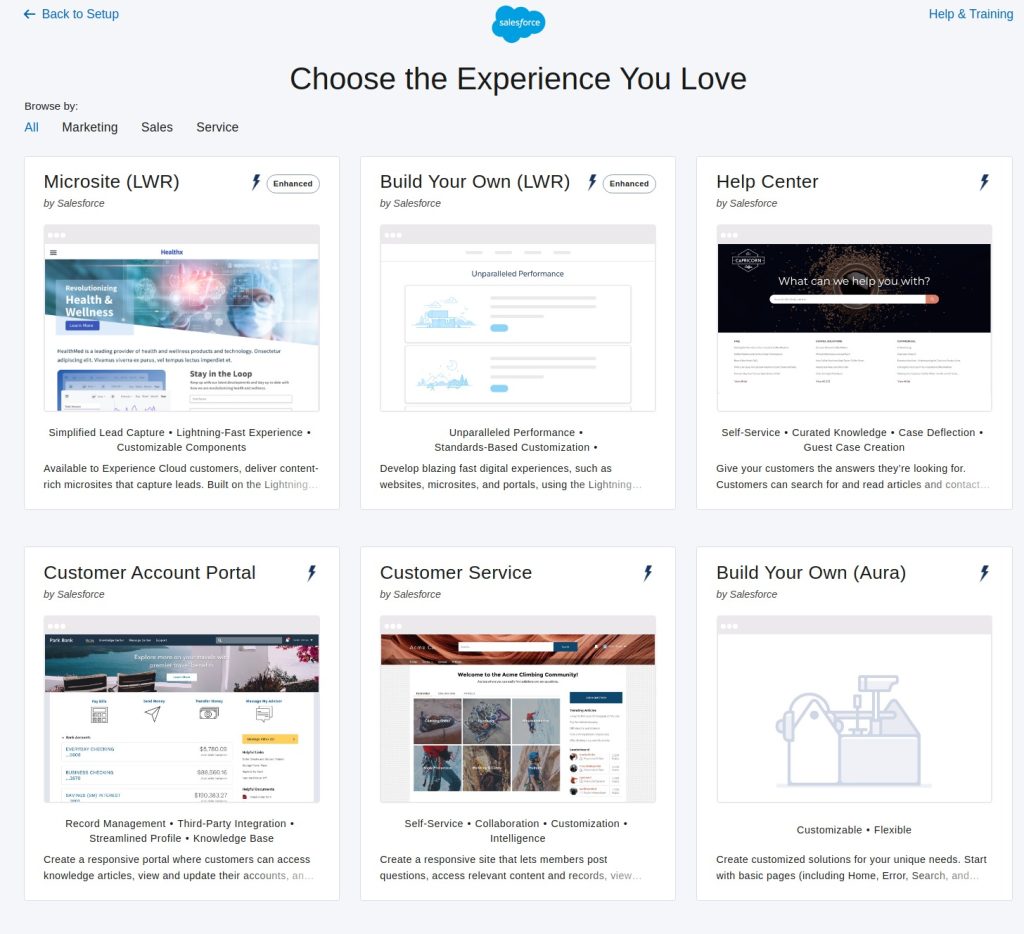
Go to Setup → Digital Experiences → All Sites, click New, and select the Build Your Own (LWR) template. On the template selection screen, LWR templates carry an "Enhanced" badge (Microsite LWR, Build Your Own LWR), while Aura templates appear below (Customer Account Portal, Customer Service, Build Your Own Aura). Do not attempt to upgrade your existing Aura site in place—Salesforce doesn't support in-place upgrades. You need to run both sites in parallel and switch over gradually.
Once the new site is created, configure basics in Experience Builder Settings: site name, default language, Guest User Profile permissions. This step gets overlooked often, but the Guest Profile's object and field-level permissions directly determine what unauthenticated visitors can see.
Step 2: Rebuild Navigation and Page Structure
LWR sites use the Navigation Menu component (found in the Site Headers section of Experience Builder). Go to Settings → Navigation and click Add Navigation Menu. The Menu Editor lets you add menu items—each pointing to a Site Page, external URL, or label.
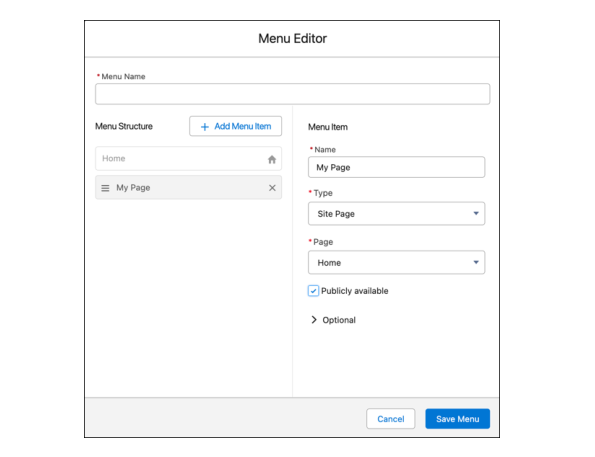
Recreate your Aura site's menu structure in LWR, noting the URL prefix change—drop the /s/.
For pages, LWR uses Flexible Layouts, so you need to rebuild page by page. Create a "page mapping spreadsheet": left column lists Aura page names and URLs, right column has the corresponding LWR pages and new URLs, middle column notes which components each page uses and which need rewriting.
Step 3: Migrate and Rewrite Components
This is where the bulk of the work lives. Categorize components into three tiers:
Drop-in replacements: Standard Aura components have LWC equivalents in LWR. Record Detail, Related List, Rich Text, etc.—just drag the LWC version into Experience Builder.
Rewrites: Custom Aura components must be rewritten in LWC. The recommended approach:
- Create a new SFDX project and copy in the Aura component files for reference
- Consolidate data access logic into the outermost LWC wrapper (instead of every child component calling Apex independently)
- Replace Aura events (
$A.get("e.force:navigateToURL")and similar) with LWC's NavigationMixin and standard DOM events - Take advantage of LWR-specific features: responsive properties, data binding, expression-based visibility
Retire: If an Aura component's functionality can be replicated with a Flow Screen Component or a combination of standard components, don't write code. Spring '26 Flow updates introduced style editing, conditional visibility, and more—many scenarios that used to require code can now be handled with Flow.
Step 4: Migrate CSS and Brand Styling
LWR site styling operates in three layers:
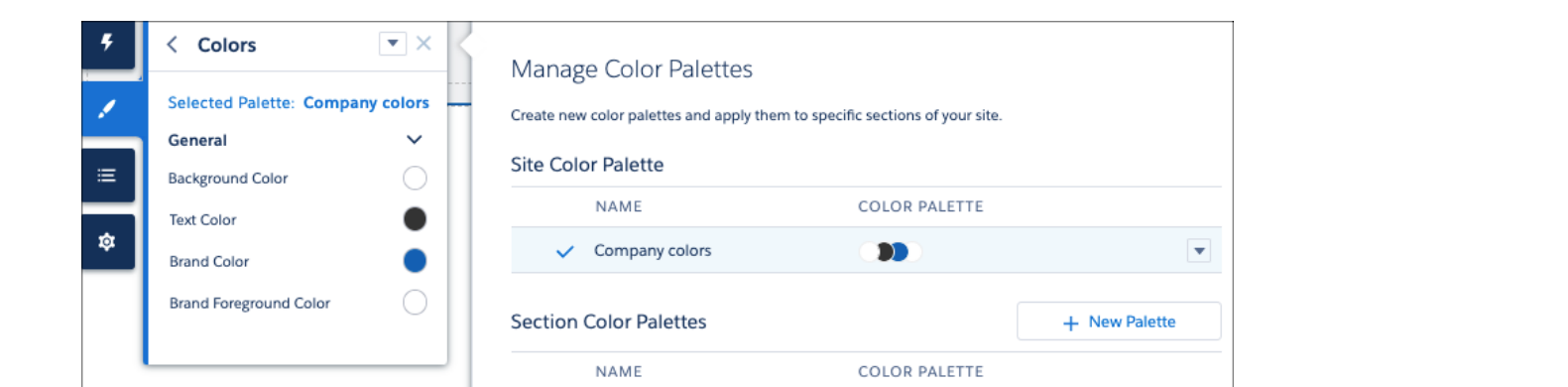
Layer 1: Theme Panel—Configure brand colors (Primary, Secondary, Surface, etc.), fonts, and border radius as global variables in Experience Builder's Theme panel. These variables automatically map to --dxp hooks, and all standard components respond to them. The Colors panel supports multiple color palettes that can be applied to different site sections.
Layer 2: --dxp Styling Hooks—When the Theme Panel isn't granular enough, reference --dxp-* variables in your component CSS for finer control. For example, --dxp-s-button-color-background controls all button background colors. Unlike hardcoding color values, using --dxp hooks means your components automatically update when a site admin changes the Theme.
Layer 3: Custom CSS Files—For styles that --dxp hooks don't cover (like tweaking spacing inside a standard component), add CSS files via SFDX in the sfdc_cms__styles directory. These files need CSS Parts syntax (::part(element-name)) to target styleable areas inside standard components.
/* sfdc_cms__styles/main.css example */
/* Modify standard Button component hover effect */
dxp_base-button::part(button):hover {
  transform: translateY(-1px);
  box-shadow: 0 2px 8px rgba(0, 0, 0, 0.15);
}

/* Custom Card component padding */
dxp_base-card::part(body) {
  padding: 1.5rem;
}
Step 5: Migrate Data Access and Permissions
Aura and LWC have different data access patterns. Aura components typically use @AuraEnabled Apex methods with $A.enqueueAction(); LWC recommends the @wire decorator with Lightning Data Service (LDS) or @AuraEnabled(cacheable=true) Apex methods.
Key migration checks:
- Guest User Profile object and field-level security (FLS) configured correctly on the new site
- Sharing Rules and org-wide defaults applicable to the new site's Guest User
- If using
without sharingApex classes, verify behavior consistency when called from LWC - Connected App OAuth configuration—if your site uses SSO or third-party login, note that Connected Apps are migrating to External Client Apps, so handle both transitions together
Step 6: Test, Redirect, and Go Live
Publish the LWR site in Experience Builder (Preview mode won't show the final experience because LWR's static caching only activates after a real publish). Testing checklist:
- Page load speed for all pages—first publish should yield 1–2 second homepage loads
- Form submissions, record create/edit workflows
- Responsive behavior across devices and browsers
- Content and permissions for Guest users vs. authenticated users
- Search functionality (if using Search Bar + Results Layout components)
Once verified, switch your Aura site's custom domain to the LWR site. Simultaneously configure URL redirect rules on the Aura site to 301 all /s/* paths to LWR's new paths, ensuring external links and search engine indexes remain unbroken.
Five Common Pitfalls During Migration
1. Aura Events Have No Direct LWC Equivalent
Aura's Application Events and Component Events don't exist in LWC. LWC uses standard DOM CustomEvents and Lightning Message Service (LMS). If your Aura components communicate via Application Events (e.g., a search box component fires an event, a list component handles it), you need to switch to LMS's publish/subscribe pattern. This involves creating a Message Channel metadata file and importing it in both LWC components.
<!-- messageChannels/SearchChannel.messageChannel-meta.xml -->
<LightningMessageChannel xmlns="http://soap.sforce.com/2006/04/metadata">
    <masterLabel>Search Channel</masterLabel>
    <isExposed>true</isExposed>
    <lightningMessageFields>
        <fieldName>searchTerm</fieldName>
        <description>The search keyword</description>
    </lightningMessageFields>
</LightningMessageChannel>
// searchBar.js — publish message
import { LightningElement } from 'lwc';
import { publish, MessageContext } from 'lightning/messageService';
import SEARCH_CHANNEL from '@salesforce/messageChannel/SearchChannel__c';
export default class SearchBar extends LightningElement {
@wire(MessageContext) messageContext;
handleSearch(event) {
const keyword = event.target.value;
publish(this.messageContext, SEARCH_CHANNEL, { searchTerm: keyword });
}
}// resultList.js — subscribe to message
import { LightningElement, wire } from 'lwc';
import { subscribe, MessageContext } from 'lightning/messageService';
import SEARCH_CHANNEL from '@salesforce/messageChannel/SearchChannel__c';
export default class ResultList extends LightningElement {
@wire(MessageContext) messageContext;
searchTerm = '';
connectedCallback() {
this.subscription = subscribe(
this.messageContext,
SEARCH_CHANNEL,
(message) => { this.searchTerm = message.searchTerm; }
);
}
}2. Changes Are Invisible Until You Publish
This is the most disorienting shift coming from Aura. On Aura sites, component changes are visible to visitors immediately; on LWR sites, you must click Publish in Experience Builder for anything to take effect—including Salesforce's own updates to standard components.
The gotcha: if you deploy an LWC bug fix to production but forget to publish in Experience Builder, visitors will still see the old version. Add an auto-publish step to your CI/CD pipeline (via the Metadata API's Network object), or at minimum add "Publish Experience site" to your deployment checklist.
3. Shadow DOM Kills CSS Penetration
In Aura sites, you may have relied on global CSS selectors to override standard component styles—something like .slds-card .slds-card__header { background: #f4f6f9; }. In LWR, this approach is completely dead. LWC's Shadow DOM prevents external styles from penetrating into component internals.
Solutions:
- Use
--dxphooks (recommended, best maintainability) - Use
::part()selectors to target component-exposed styleable areas (for cases--dxpdoesn't cover) - For custom LWC components, write scoped styles directly in the component's
.cssfile
Do not attempt to bypass Shadow DOM isolation through :host-context() or other penetration tricks—LWR's LWS (Lightning Web Security) will block these.
4. Route Count Overruns Cause Performance Issues
LWR sites support a maximum of 500 routes (unique URLs), with Salesforce recommending you stay under 250 for optimal performance. If your Aura site has many static pages (individual pages per product, per FAQ entry, etc.), migrating them directly to LWR may hit this ceiling.
The solution is to use dynamic content instead of static routes—use a single Record Detail page with URL parameters to display different records, rather than creating a separate page for each record. CMS content works the same way: one detail page template + dynamic slug.
5. Metadata Deployment Paths Are Different
Aura site metadata lives under the experiences/ directory (Experience Bundle type). LWR site metadata lives under digitalExperiences/ (Digital Experience Bundle type). If your CI/CD pipeline uses .forceignore or package.xml to filter metadata, you must update these configuration files post-migration, or the new site's changes won't be retrieved or deployed.
In package.xml, add:
<types>
    <members>*</members>
    <name>DigitalExperienceBundle</name>
</types>
<types>
    <members>*</members>
    <name>DigitalExperienceConfig</name>
</types>
If you're using Salesforce DX for development, also make sure your sfdx-project.json packageDirectories include the digitalExperiences path when running sfdx force:source:retrieve.
Post-Migration Performance Optimization
LWR's static pre-compilation architecture is inherently faster than Aura, but several optimization points are worth addressing:
Experience Delivery (Beta)—Salesforce's next-generation hosting infrastructure designed specifically for LWR sites, delivering sub-second page loads along with improved security and SEO. Enable it in Setup → Digital Experiences → Settings. Once activated, the site automatically switches to the new CDN architecture—no code changes required.
Image and Static Resource Optimization—LWR bundles static resources at publish time, but images in CMS content aren't included in the bundle. Ensure uploaded images are compressed (prefer WebP format), and use loading="lazy" in custom LWC components for lazy loading.
Reduce Unnecessary Apex Calls—Prefer Lightning Data Service (LDS) for single-record data retrieval. Use @wire with cacheable=true Apex methods for list data. LDS has built-in client-side caching—data for the same record is only requested once.
Load Components On Demand—If a component only appears under specific conditions (like an admin-only statistics panel), use Expression-based Visibility to control its rendering, avoiding unnecessary component loading for every visitor. This is an LWR Enhanced site feature that Aura sites don't have.
How Long Will Aura Sites Be Supported
Salesforce hasn't publicly announced an End of Life date for Aura templates, and forced migration isn't happening in the near term. But the trend is unmistakable: Spring '26's Experience Cloud features (Pending Task Banner, Activity Timeline, 16 new standard components, GEO support) are all LWR-exclusive. Aura templates haven't received meaningful feature updates in a long time.
Practical recommendations:
- New projects: Go straight to LWR—there's no reason to choose Aura anymore
- Existing small sites (< 20 custom components): Schedule migration soon; expect 2–4 weeks of effort
- Existing large sites (> 50 custom components): Plan a 6–12 month migration, replacing modules incrementally
- B2B Commerce sites: Salesforce provides a dedicated B2B Commerce Aura to LWR Migration Guide that covers product catalog, cart, and checkout flow migration beyond the general process